Fundamental
Prepare and test your skills

Fundamental
Prepare and test your skills
Managing VM SSH with OS Login
Activation and Metadata Configuration is the process that turns on OS Login for Compute Engine virtual machines (VMs) by setting metadata. OS Login (opens in a new tab) is a Compute Engine feature that links Linux user accounts to Google identities so that Secure Shell (SSH) access is controlled by Identity and Access Management (IAM). Activation is done by setting the metadata key enable-oslogin to TRUE in project metadata or instance metadata. Once activated, the VM stops using SSH keys stored in metadata and instead gets user keys and permissions from the OS Login service on every login.
How OS Login Changes SSH Access
How OS Login changes SSH access is a shift from manual key distribution to centralized identity-based control. Without OS Login, administrators add SSH public keys to project or instance metadata and the guest agent (opens in a new tab) creates local accounts and authorized_keys files from those keys. With OS Login enabled, the guest agent ignores metadata-based SSH keys, deletes the VM's authorized_keys files, and fetches the SSH keys tied to the user's Linux account from the OS Login service to authenticate each login attempt. Google checks the user's IAM permission on every login, so access follows the Google identity rather than a key left on a VM. If an administrator grants or removes an IAM role, the ability to log in changes automatically without adding or removing keys.
Project-Wide and Instance-Specific Metadata
Metadata configuration for OS Login controls which VMs use centralized access by choosing where the enable-oslogin key is set. Project metadata applies the setting to all VMs in the project, while instance metadata applies it to one specific VM. Both locations use the same key and value, but they differ in scope and override behavior. Instance metadata takes precedence over project metadata when both are set.
| Scope | Where key is set | Effect |
|---|---|---|
| Project-wide | Project metadata with key enable-oslogin and value TRUE | Enables OS Login for all VMs in the project that do not override it |
| Instance-specific | Instance metadata with key enable-oslogin and value TRUE | Enables OS Login for that single VM, including during VM creation |
That precedence controls both enabling and disabling. Setting enable-oslogin to FALSE in instance metadata disables OS Login for that VM even if project metadata sets it to TRUE. When OS Login is disabled, VMs return to accepting SSH connections (opens in a new tab) with keys stored in metadata.
Exam tip: Instance metadata overrides project metadata, so enable-oslogin=FALSE on one VM turns off OS Login for that VM even when the project enables it.
Enabling OS Login When Creating a VM
Enabling OS Login when creating a VM configures the new instance to use IAM-based access from its first boot. In the Google Cloud console, the option is labeled Control VM access through IAM permissions under the security and access settings. In automation tools, the same result is achieved by setting up OS Login (opens in a new tab) with enable-oslogin=TRUE in the VM or project metadata at creation time. The setting can also be managed consistently across many projects inside an organization (opens in a new tab).
The console workflow creates a VM with OS Login enabled on startup through an ordered sequence:
- Expand Advanced options: Open the additional VM settings on the creation page.
- Expand Security section: Reveal the security-related controls for the VM.
- Expand Manage access section: Reveal the login access controls.
- Select Control VM access through IAM permissions: Choose IAM-based access, which sets OS Login metadata for the VM.
- Click Create: Create and start the VM with OS Login active.
The gcloud command-line interface (CLI) uses the same metadata mechanism with the flag --metadata enable-oslogin=TRUE on gcloud compute instances create, along with the VM name, image family, and image project. Terraform uses the google_compute_project_metadata resource to set enable-oslogin = "TRUE" for a whole project or the google_compute_instance resource with enable-oslogin in its metadata block for a single VM.
SSH Key Lifecycle and Security Management is how OS Login handles SSH keys automatically and protects logins with extra verification. OS Login (opens in a new tab) is the Compute Engine service that links a Linux user account to a Google identity so SSH access can be managed with IAM instead of individual keys on each VM. When OS Login is enabled, the VM fetches the user's SSH keys from the OS Login service for every login attempt and ignores SSH keys stored in project or instance metadata. Google never has access to the user's private key, and access ends automatically when IAM permissions are removed or the Google account is suspended.
How OS Login Handles SSH Keys
How OS Login handles SSH keys ties the key lifecycle to the lifecycle of the Google account and its IAM permissions. The VM's guest agent fetches authorized keys from the OS Login service when a connection arrives, and Compute Engine checks IAM permissions for every login attempt. If an administrator removes the roles/compute.osLogin or roles/compute.osAdminLogin role, the next connection is denied even though the user's public key still exists in the OS Login profile. This is different from metadata-based keys, which remain valid until they are removed from metadata or the VM is deleted. A POSIX profile is the template that defines the Linux identity for a Google account, including username, user ID (UID), group ID (GID), and home directory. OS Login creates the POSIX profile automatically the first time it is needed, and the same profile is then used consistently across instances in the project or organization.
Certificate-Based Login Flow
Certificate-based authentication with OS Login replaces long-lived keys on VMs with a short-lived signed SSH certificate issued by the OS Login certificate authority. The certificate proves the user's identity for one connection window, and Compute Engine authenticates the certificate to grant the connection. Usernames longer than 32 characters are truncated, service account users are prefixed with sa_, and users from a different Google Workspace organization are prefixed with ext_. The login flow runs in order:
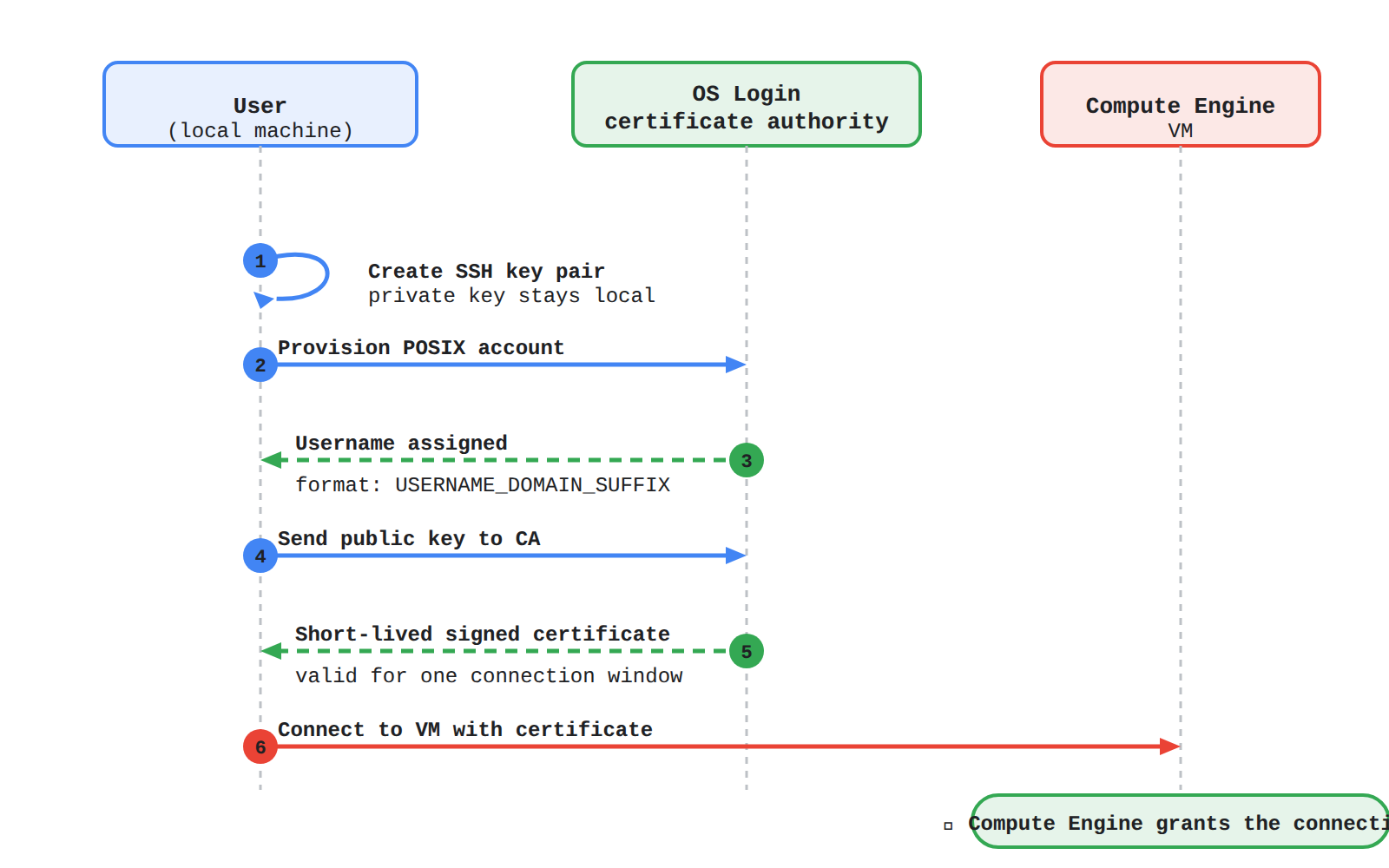
A sequence diagram showing six ordered steps of certificate-based OS Login: the user creates an SSH key pair, provisions a POSIX account, receives a username, sends the public key to the OS Login certificate authority, receives a short-lived signed certificate, and connects to the VM, which grants access.
- Create key pair: The user creates an SSH key pair and keeps the private key locally.
- Provision POSIX account: The user provisions a POSIX account if one does not already exist for the Google identity.
- Assign username: Compute Engine assigns a username in the format
USERNAME_DOMAIN_SUFFIX, for examplecloudysanfrancisco_gmail_com. - Send public key: The user sends the public key from the local machine to the OS Login certificate authority.
- Receive certificate: The OS Login certificate authority returns a short-lived signed SSH certificate.
- Connect to VM: The user presents the certificate to the VM, and Compute Engine authenticates the certificate and grants the connection.
An administrator can customize usernames with the Google Workspace Admin SDK Directory API, except for workforce identity federation users who must ask their administrator for changes.
Managing Keys with the Google Cloud CLI and API
Managing keys with the Google Cloud CLI (gcloud CLI) and the OS Login API automates key lifecycle tasks instead of manually copying keys to VMs. Importing a public key or connecting to a VM triggers OS Login to configure POSIX information for the Google account. Because the VM pulls keys from the central OS Login service, there is no need to copy public keys into project or instance metadata, and keys in metadata are ignored once OS Login is enabled. OS Login configures the account when the user performs any of the following actions:
- Connect to an OS Login-enabled VM using the Google Cloud console
- Connect to an OS Login-enabled VM using the gcloud CLI
- Import a public SSH key using the gcloud CLI
- Import a public SSH key using the OS Login API
The API operations behind this automation include provisioning the POSIX account and signing the public key to create the short-lived certificate. Setting up OS Login (opens in a new tab) this way keeps one identity working consistently across many VMs. The same centralized model can be managed across an organization (opens in a new tab) so new VMs inherit the correct behavior.
Protecting Logins with Two-Factor Authentication
Protecting logins with two-factor authentication (2FA) in OS Login requires users to complete Google 2-Step Verification in addition to presenting their SSH credential. Both metadata keys must be set to TRUE for enforcement: enable-oslogin and enable-oslogin-2fa, set at the project or instance level. Users must have 2-Step Verification set up on their Google Account or domain before connecting, or access is denied, while service account users are exempt from the 2-Step Verification check. When connecting, the user sees a prompt based on the configured challenge type and must approve or enter the second factor to continue. OS Login supports the following challenge types for SSH connections (opens in a new tab):
- Google Authenticator
- Text message or phone call verification
- Phone prompts
- Security key one-time password (OTP)
Exam tip: OS Login 2FA is enforced only when both enable-oslogin and enable-oslogin-2fa are set to TRUE; setting only enable-oslogin-2fa does not protect the VM.
IAM Role Assignment and Permission Levels determine who can log in to OS Login-enabled VMs and what they can do after login. OS Login (opens in a new tab) controls SSH access to Compute Engine VMs through IAM. Instead of managing individual SSH keys, an administrator links a Linux user account to a Google identity and grants an IAM role that decides whether that identity can log in. Google checks these IAM permissions on every login attempt, so removing a role revokes VM access automatically.
Core OS Login Roles
The core OS Login roles define two permission levels for SSH access to a VM. Both roles allow a user or service account to log in, but only one grants administrator control inside the guest operating system.
| Role | SSH login allowed | Administrator privilege |
|---|---|---|
roles/compute.osLogin | Yes | No, regular user access without sudo |
roles/compute.osAdminLogin | Yes | Yes, administrator access with sudo |
The roles/compute.osLogin role is for users who need to work on a VM without changing system settings, since it permits login but blocks commands such as sudo. The roles/compute.osAdminLogin role is for administrators who need full control, since it permits login plus sudo and effectively grants root privileges on the VM. Choose roles/compute.osLogin when root privileges are not required, and choose roles/compute.osAdminLogin only when administrative work is required.
Exam tip: roles/compute.osLogin allows login without sudo, while roles/compute.osAdminLogin allows login with sudo.
Where OS Login Roles Are Granted
Where OS Login roles are granted controls how broadly SSH access applies across Google Cloud resources. A role granted at the project level applies to all OS Login-enabled VMs in that project, while a role granted on a single instance applies only to that VM. Roles can also be granted at the folder or organization level, where access flows down to the projects and instances contained within that folder or organization (opens in a new tab). Users who connect through the Google Cloud console or gcloud CLI need visibility into the project in addition to login permission. For those users, grant the OS Login role at the project level, or additionally grant a project-level role that contains the compute.projects.get permission.
Supporting Roles Required to Connect
Supporting roles required to connect cover the network path, service account use, and cross-organization access that a complete OS Login connection depends on. The VM fetches SSH keys from the OS Login service to authenticate the attempt, and additional checks control whether the connection can proceed. A common failure is when authorization fails even though the user holds roles/compute.osLogin, which is often caused by a missing service account permission.
roles/iap.tunnelResourceAccessorapplies to users who connect using Identity-Aware Proxy (IAP) TCP forwarding, and the role is granted on the project or on the instance.roles/iam.serviceAccountUserapplies to all users when the VM has an attached service account, and the role is granted on that service account. OS Login checks for theiam.serviceAccounts.actAspermission on every connection because SSH connections (opens in a new tab) to the VM allow the user to request credentials from the VM metadata server and act as the attached service account.roles/compute.osLoginExternalUserapplies to users from a different organization than the VM they connect to, and the role is granted on the organization by an organization administrator.
When a user connects to a VM, that user can use all of the IAM permissions granted to the service account attached to the VM. Setting up OS Login (opens in a new tab) correctly therefore means granting both a login role and any supporting role needed for the connection path. If login problems continue, troubleshooting OS Login (opens in a new tab) checks for these missing permissions.
Key Facts
- OS Login is enabled by setting the metadata key
enable-oslogintoTRUEin project metadata for all VMs or in instance metadata for one VM, and instance metadata overrides project metadata. - When OS Login is enabled, VMs ignore SSH keys in project or instance metadata and fetch keys from the OS Login service while checking IAM permissions on every login.
- Certificate-based OS Login uses a short-lived signed SSH certificate from the OS Login certificate authority and assigns usernames in the format
USERNAME_DOMAIN_SUFFIX. roles/compute.osLoginallows SSH login withoutsudo, whileroles/compute.osAdminLoginallows SSH login withsudo.- OS Login two-factor authentication requires both
enable-osloginandenable-oslogin-2faset toTRUEplus Google 2-Step Verification on the user account.
Frequently Asked Questions
How do I enable OS Login for Compute Engine virtual machines (VMs) with metadata?
Set the metadata key enable-oslogin to TRUE in project metadata to enable OS Login for all virtual machines in the project that do not override it or in instance metadata to enable it for a single virtual machine. Instance metadata takes precedence over project metadata, so setting enable-oslogin to FALSE in instance metadata disables OS Login for that virtual machine even if project metadata sets it to TRUE.
What is the difference between the Identity and Access Management (IAM) roles roles/compute.osLogin and roles/compute.osAdminLogin for OS Login?
Both roles allow Secure Shell (SSH) login to OS Login-enabled virtual machines, but roles/compute.osLogin allows regular user access without sudo while roles/compute.osAdminLogin allows administrator access with sudo. Choose roles/compute.osLogin when root privileges are not required and roles/compute.osAdminLogin only when administrative work is required.
How does OS Login handle Secure Shell (SSH) keys compared to metadata-based keys?
When OS Login is enabled, virtual machines ignore Secure Shell keys stored in project or instance metadata and fetch the user's keys from the OS Login service while checking Identity and Access Management permissions on every login. If the osLogin or osAdminLogin role is removed, the next connection is denied even though the public key still exists in the OS Login profile, whereas metadata-based keys remain valid until they are removed from metadata or the virtual machine is deleted.
What is required to enforce two-factor authentication (2FA) for OS Login Secure Shell (SSH) connections?
Enforcement requires both enable-oslogin and enable-oslogin-2fa set to TRUE at the project or instance level, and users must have Google 2-Step Verification set up on their Google Account or domain before connecting or access is denied. Service account users are exempt from the 2-Step Verification check and setting only enable-oslogin-2fa does not protect the virtual machine.
Sample Question
Your organization wants to simplify SSH access management across multiple Compute Engine Linux instances in a Google Cloud project. Currently, team members manually add individual SSH public keys to project and instance metadata, leading to administrative overhead and access management challenges.
You need to transition the environment to centralized identity-based access by enabling OS Login across all instances in the project.
What should you do, and what happens to metadata-stored SSH keys once this configuration is applied?
How learners score on this domain
Last updated