Eager to master hybrid server management? Discover how to administer Windows Server Hybrid Core Infrastructure on Azure, setting your path towards the Microsoft Certified: Azure Hybrid Infrastructure Administrator Associate certification!
Prepare and test your skills

Prepare and test your skills
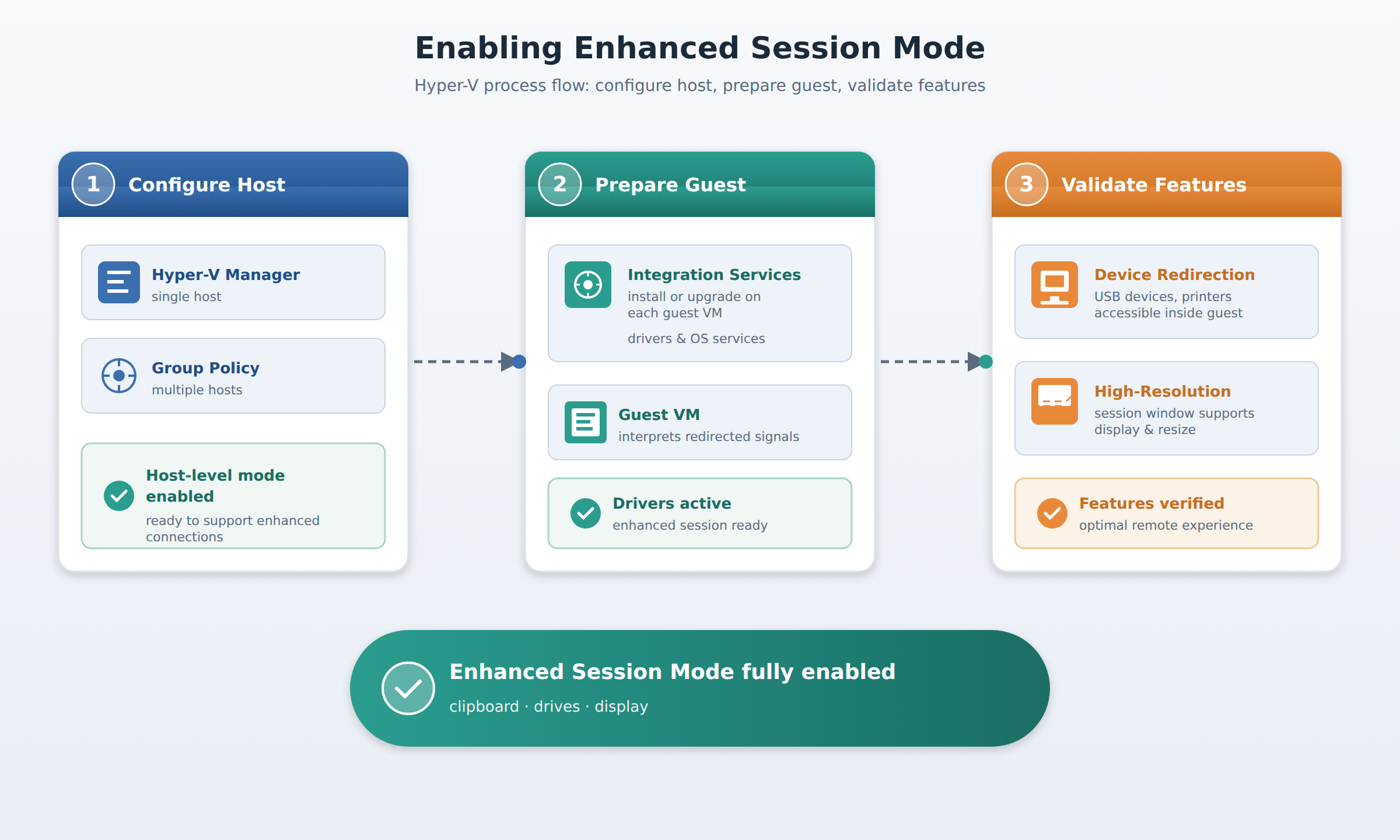
A three-step process flow showing how Enhanced Session Mode is enabled in Hyper-V: host configuration via Hyper-V Manager or Group Policy, guest preparation via Integration Services, and validation of device redirection and high-resolution display.
Enhanced Session Mode in Hyper-V improves administrator interaction with virtual machines by enabling advanced connection features like seamless clipboard sharing, drive redirection, and high-resolution display capabilities during remote sessions.
You configure Enhanced Session Mode on the physical host machine using the Hyper-V Manager console for a single host, or use Group Policy to deploy the setting consistently across multiple hosts.
Guest virtual machines require Integration Services installed or upgraded to provide the essential drivers and operating system services that allow the guest to interpret redirected signals from the host.
You validate Enhanced Session Mode by testing device redirection capabilities, checking if local resources like USB devices are accessible inside the guest, and verifying that the session window supports high-resolution displays.
Enhanced Session Mode in Hyper-V improves how administrators interact with virtual machines by enabling advanced connection features. This mode allows for seamless clipboard sharing, drive redirection, and high-resolution display capabilities during active remote sessions. These capabilities significantly enhance the convenience and usability of managing virtual machines in a hybrid environment. Without this mode, administrators are limited to basic console interactions, making daily administrative tasks more time-consuming to perform.
To activate Enhanced Session Mode, you must first configure it on the physical host machine. Administrators can manage this setting on a single host using the Hyper-V Manager console by adjusting the host-level settings. If you need to deploy this configuration to multiple hosts at once, you can use Group Policy to enforce the setting consistently across your entire infrastructure. Once the host-level configuration is enabled, the host environment is ready to support enhanced connections, but the guest virtual machines must also be prepared to support them.
Guest virtual machines require specific software components to communicate with the host using enhanced features. This guest-side capability depends on Integration Services, which you must install or upgrade on each individual guest virtual machine. Integration Services provides the essential drivers and operating system services that allow the guest to interpret redirected signals from the host. Without these drivers running in an active state on the guest, the virtual machine will default to a basic session even if the host has the mode enabled.
After configuring both the host and the guest, you must validate that the enhanced features work correctly during live virtual machine sessions. Administrators should test device redirection capabilities by checking if local resources, such as USB devices and printers, are accessible inside the guest operating system. You should also verify that the session window supports high-resolution displays and adjusts correctly during use. Confirming that these features function as expected ensures an optimal and fully functional remote management experience.
 StudyCerts
 StudyCerts