Eager to master hybrid server management? Discover how to administer Windows Server Hybrid Core Infrastructure on Azure, setting your path towards the Microsoft Certified: Azure Hybrid Infrastructure Administrator Associate certification!
Prepare and test your skills

Prepare and test your skills
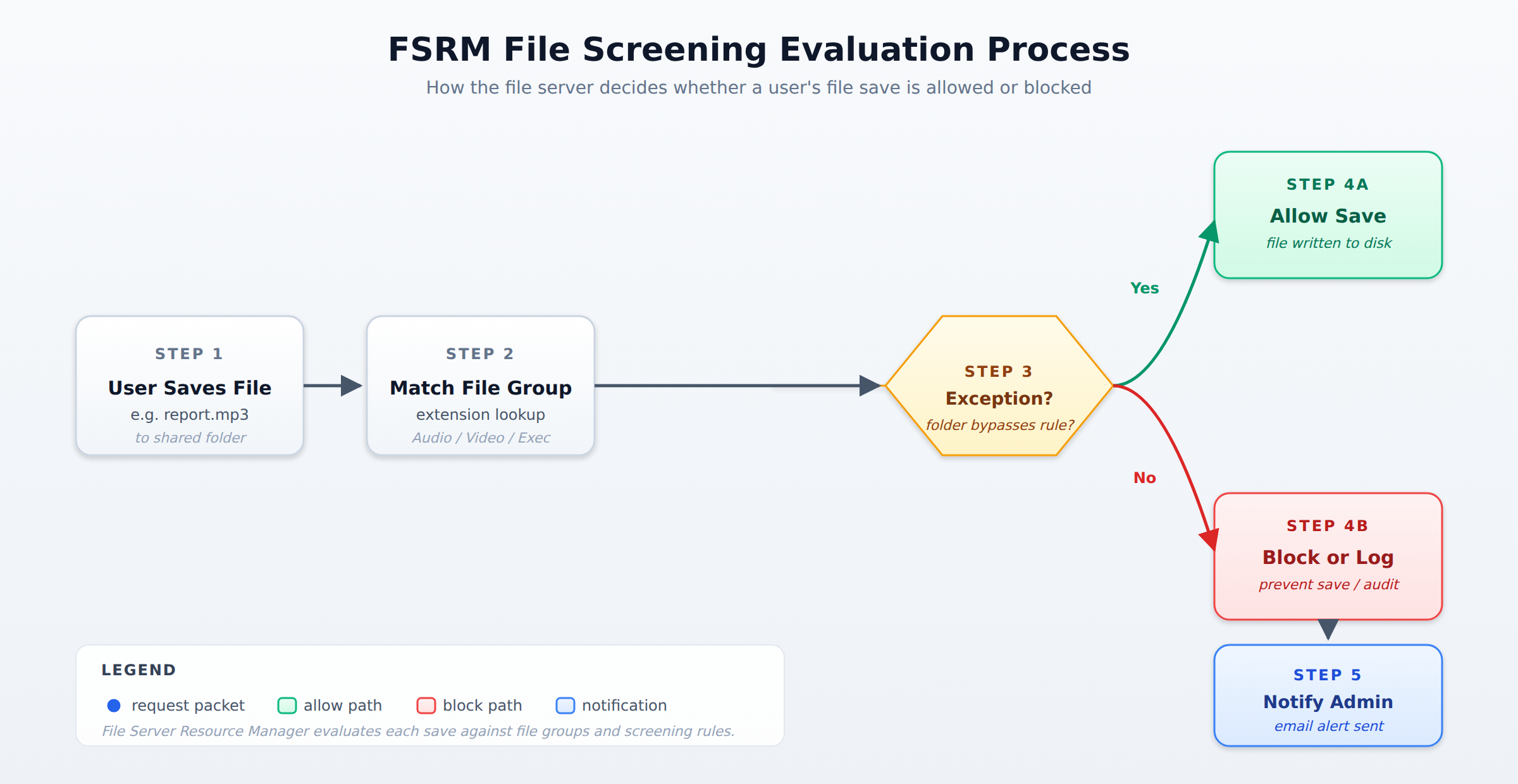
A horizontal process flow showing how FSRM evaluates a user file save request through file group matching, screening policy application, exception checking, and either allow or block with notification outcomes.
File Server Resource Manager (FSRM) combines three main functions: setting storage limits with quotas, blocking unwanted file types with screening policies, and generating reports that show how storage is being used.
The key parts of a quota template are the storage limit, the monitoring schedule, and the notification settings. The storage limit defines the maximum space, the monitoring schedule determines how often the server checks usage, and notification settings control user warnings and administrator alerts.
File screening policies control which types of files users can save by using file groups that list file extensions and setting rules to either allow or block those groups. The server can prevent the save of a blocked file type entirely or simply log the attempt and notify the administrator.
Scheduling storage reports allows them to run automatically, such as every week or month, so administrators do not have to run them manually. This report data helps administrators make decisions about storage capacity and policy adjustments based on quota usage, file screening incidents, and disk utilization.
File Server Resource Manager (FSRM) is a built-in Windows Server tool that helps administrators control how storage space is used on file shares. It combines three main functions: setting storage limits with quotas, blocking unwanted file types with screening policies, and generating reports that show how storage is being used. These features work together to keep file servers running smoothly and to prevent problems like running out of disk space.
Quota templates are reusable rules that set maximum storage limits for volumes or folders. When an administrator creates a quota template, they decide how much storage a folder can hold and what happens when that limit is reached. The template can be applied to many folders at once, which saves time compared to setting limits individually.
The key parts of a quota template are the storage limit, the monitoring schedule, and the notification settings. The storage limit defines the maximum space in gigabytes or megabytes. The monitoring schedule determines how often the server checks whether the limit is being approached. Notification settings control whether users get warned when they are near their limit and whether administrators receive alerts. By combining these elements, quota templates prevent folders from filling up unexpectedly and help users understand their storage consumption.
File screening policies control which types of files users can save on the file server. Administrators create file groups that list file extensions, such as MP3, AVI, or EXE, and then set rules that either allow or block those groups. When a user tries to save a blocked file type, the server can either prevent the save entirely or simply log the attempt and notify the administrator.
File screening also supports exceptions, which are folders or files that bypass the screening rules. For example, a marketing team might need to store audio files for a project, so their folder could be marked as an exception to the MP3 block. The screening policy can send email notifications when blocked files are detected, helping administrators track unauthorized usage. This capability is important for organizations that need to comply with legal restrictions on file types or want to reduce security risks from executable files.
Storage reports give administrators visibility into how storage is being used across the file server. FSRM can generate many types of reports, including quota usage summaries, file screening incident logs, and disk utilization analyses. These reports can be scheduled to run automatically, such as every week or month, so administrators do not have to run them manually.
The report data helps administrators make decisions about storage capacity and policy adjustments. If a report shows that a department consistently approaches its quota limit, the administrator might increase the quota or ask the department to clean up old files. Similarly, if screening reports show repeated attempts to save blocked file types, the administrator might need to update the screening rules or investigate the source. The cycle of generating reports, analyzing the results, and making changes creates an ongoing improvement process for storage management.
 StudyCerts
 StudyCerts