Fundamental
Prepare and test your skills

Fundamental
Prepare and test your skills
Cloud Financial Governance for Predictable Costs
Budgets, quotas, and cost controls in Google Cloud work together to make spending predictable and to keep resource use inside clear boundaries. Cloud Billing Budgets (opens in a new tab) set financial targets and send alerts as spending grows, quotas limit how many resources projects and teams can create, and organization policies enforce rules about where and how resources run. Together these controls prevent unexpected consumption while giving each team ownership of its share of spending.
Budgets and Alerts for Predictable Spending
Budgets in Google Cloud are financial boundaries that support predictable cost behavior through standardized calculation and proactive monitoring. A consistent method determines full costs after discounts and shared costs, and a portion of the overall budget is allocated to each team or project so teams make cost-effective decisions within their share. Teams need three kinds of cost data to stay on target: projected resource costs at design and deployment time, real-time resource usage costs for ongoing monitoring and budget validation, and costs mapped to business metrics like key performance indicators (KPIs).
The Google Cloud Billing dashboard provides real-time insight into spending and regular cost progression snapshots, such as weekly views, for forecasting and identifying optimization opportunities. Custom metrics in Cloud Monitoring (opens in a new tab) can trigger alerts that notify administrators when predefined thresholds are met, so administrators can adjust allocation before costs escalate. This flow moves from resource usage to cost data to alert to human action, which keeps spending visible across product owners, developers, deployment engineers, administrators, and financial analysts.
Spend Cap Budgets That Enforce a Hard Limit
Spend cap budgets are a special type of Cloud Billing Budgets that reduce unexpected or runaway costs by automatically pausing usage when spending reaches its limit. Spend cap budgets (opens in a new tab) use gross, estimated costs for faster enforcement, and alert emails are sent when spend exceeds 50% and 80% of the spend cap amount. When gross, estimated usage costs exceed 100% of the budget amount in the specified project, the cap is enforced and all new usage for the specified service in that project is blocked until someone manually lifts the cap.
Spend Cap Budget Enforcement Lifecycle
State / Lifecycle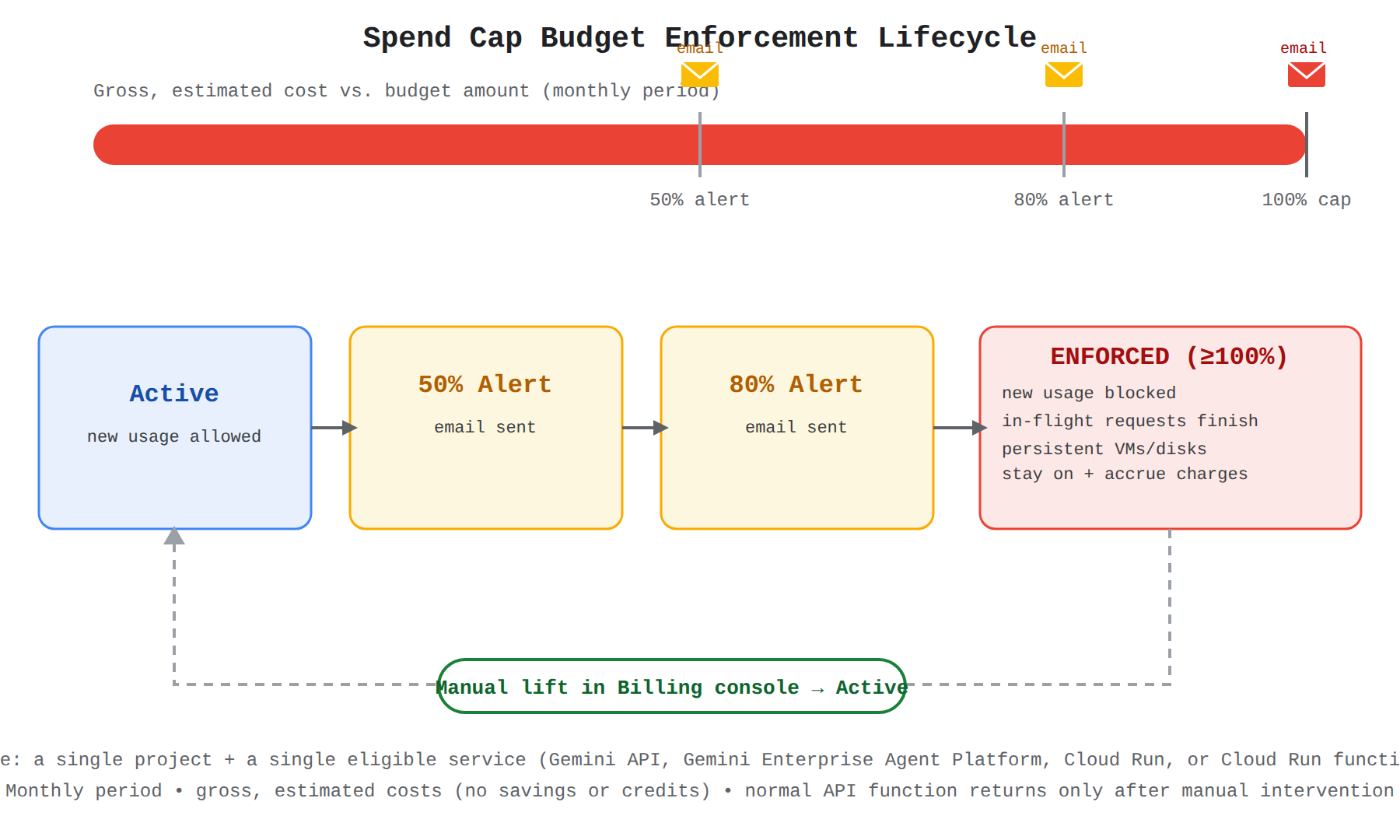
A state diagram showing how a Google Cloud spend cap budget progresses: as gross, estimated spending reaches 50% and 80% alert emails are sent, at 100% the cap is enforced so new usage is blocked while persistent VMs and disks keep running and accruing charges, and an administrator manually lifts the cap in the Billing console to return to Active.
While a spend cap is enforced, in-flight requests for the specified service run to completion and accrue charges, but no new on-demand usage or usage covered by commitments can start. Spend caps do not pause ongoing, fixed usage from persistent resources such as compute and storage services, which remain active and continue to accrue charges. Normal API function returns only after manual intervention in the billing console to edit the budget and lift the cap, and enforcement also triggers email alerts to billing account administrators and project owners plus banners on the Budgets and Billing Overview pages.
Spend cap budgets apply only to specific API-based services in a single project:
- Gemini API in the specified project is blocked from new usage when its cap is reached.
- Gemini Enterprise Agent Platform in the specified project is blocked from new usage when its cap is reached.
- Cloud Run in the specified project is blocked from new usage when its cap is reached.
- Cloud Run functions in the specified project are blocked from new usage when their cap is reached.
Exam tip: A spend cap budget is limited to a single project and a single eligible service with a monthly period starting on the first day of the month, and its calculations use gross costs without savings and credits.
Quotas and Resource Hierarchy That Bound Consumption
Quotas in Google Cloud are limits that bound how many resources can be created, and project quotas directly impact the ability to create resources in the cloud. Quotas sit inside the Organization resource (opens in a new tab) hierarchy, where the Organization node at the top provides central visibility and control over every resource. The hierarchy flows from the Organization resource to folders to projects to service resources, so an Organization can contain folders, folders group related projects, and projects contain resources such as Compute Engine virtual machines (VMs), Pub/Sub topics, Cloud Storage buckets, and Cloud VPN endpoints.
Google Cloud Hierarchy for Cost Control
Hierarchy / TaxonomyHierarchy from Organization to folders to projects to service resources, showing quotas, organization policies, and billing inherited top-down to bound consumption.
Because billing and access follow this same hierarchy, quotas applied at the project level prevent one team or workload from consuming without limit and affecting the whole organization. If frequent changes are expected, infrastructure as code (IaC) helps manage this structure consistently through the Google Cloud console, Cloud Shell, or Cloud APIs. This dependency means the resource hierarchy determines both who can provision resources and how the resulting consumption is billed.
Organization Policies and Visibility That Strengthen Control
Organization policies in Google Cloud are rules that resources must follow, including where workloads are allowed to run. Resource location constraints help ensure workloads deploy only in pre-approved regions, which controls where data is stored and processed and avoids costly deployments in the wrong region. Pricing can vary across regions and between fixed monthly charges and usage-based charges, so these policies work with estimates from the Google Cloud pricing calculator and product-specific pricing to keep choices aligned with the cost model.
Right-sizing and autoscaling strengthen the same control by matching allocation to actual demand instead of over-provisioning. Cloud Monitoring provides real-time visibility into utilization metrics to reveal inefficiencies, while Recommender analyzes utilization data to recommend better allocation. Together, standardized budgeting, cost allocation to teams, quota limits, and policy guardrails give every role from analyst to administrator the information and boundaries needed to keep cloud resource use predictable and controlled.
Governance policies for resource optimization are the rules and practices that keep cloud spending predictable while making sure workloads still perform well. These policies combine monitoring, autoscaling, labeling, cost allocation, and organization-level controls so teams can see what they spend and adjust resources to match real demand. The goal is to balance cost and functionality by making informed decisions about provisioning, scaling, and migration.
Right-Sizing Resources
Right-sizing in Google Cloud means continuously monitoring resource utilization and adjusting resource allocation to match actual demand. Over-provisioning resources leads to unnecessary costs, while under-provisioning causes performance bottlenecks that affect application performance and user experience. Cloud Monitoring (opens in a new tab) provides real-time visibility into resource utilization metrics, letting teams track usage patterns and identify inefficiencies.
Recommender analyzes resource utilization data and makes intelligent recommendations for optimizing resource allocation. Teams can also use custom metrics to trigger automated right-sizing actions and configure alerts that notify administrators when predefined thresholds are met, so resources are scaled in a timely manner. This creates a loop where monitoring data flows to recommendations and alerts, and then to resizing actions that bring allocation back in line with demand.
Autoscaling for Fluctuating Demand
Autoscaling in Google Cloud dynamically adjusts the capacity of resources based on workload fluctuations, so teams have the resources they need when they need them and avoid over-provisioning. Autoscaling adds capacity when demand rises and removes capacity when demand falls, which keeps costs tied to actual use. Google Cloud offers several autoscaling options:
- Compute Engine managed instance groups (MIGs) are groups of VMs managed and scaled as a single entity, where autoscaling policies specify minimum and maximum VMs and trigger scaling on signals like CPU utilization.
- Google Kubernetes Engine (GKE) autoscaling dynamically adjusts cluster resources to match application needs, where Cluster Autoscaler adds or removes nodes based on Pod resource demands.
- Cloud Run scales to zero instances by default when a service receives no traffic, so no instance costs accrue during idle periods.
Exam tip: Right-sizing adjusts an existing resource to match demand, while autoscaling dynamically adds or removes resources as demand changes. Use right-sizing when the resource size is wrong; use autoscaling when demand fluctuates.
Resource Labels and Cost Allocation
Resource labels in Google Cloud are a consistent and standard set of tags for all resources that make it possible to track which team or project owns each resource. Labels allow cost data to be filtered by project, department, cost center, or environment, which maps spending to business metrics. To achieve organization-wide cost visibility, teams responsible for cost management can take several actions:
- Standardize cost calculation and budgeting by using a consistent method to determine full costs after factoring in discounts and shared costs.
- Use standardized cost management and visibility tools that provide real-time insights and generate regular cost progression snapshots, including the Google Cloud Billing dashboard, third-party solutions, or open-source solutions like the Cost Attribution solution.
- Implement a cost allocation system that assigns a portion of the overall cloud budget to each team or project, giving teams ownership over spending.
- Promote transparency by encouraging teams to discuss cost implications during design and decision-making, using aggregated metrics like total cost per environment or relative metrics like average cost per transaction when raw cost data cannot be shared.
Cost Optimization Options by Resource Type
Cost optimization options by resource type are strategies that improve utilization and efficiency for each kind of cloud resource, including rightsizing, autoscaling, and adopting serverless technologies. Cloud Run (opens in a new tab) lets teams configure always-allocated CPUs to handle predictable traffic loads at a fraction of the price of the default allocation method, where CPUs are allocated only during request processing. BigQuery slot commitments let teams save money on data analysis by committing to analysis capacity. GKE provides detailed cost optimization metrics to help teams understand optimization options for Kubernetes workloads.
Organization Policies and Financial Boundaries
Organization policies in Google Cloud enforce cost discipline across the resource hierarchy. The Organization resource (opens in a new tab) is the apex of the Google Cloud resource hierarchy, and all resources that belong to an organization are grouped under the organization node, which provides central visibility and control. An Organization can contain one or more folders, and each folder can contain one or more projects. Projects contain service resources such as Compute Engine VMs, Pub/Sub topics, Cloud Storage buckets, and Cloud VPN endpoints.
This hierarchy determines how teams are billed for resource consumption and establishes a security model for granting roles and permissions through Identity and Access Management (IAM). Estimating realistic budgets and setting financial boundaries within this structure helps control spending, because limits and permissions applied higher in the hierarchy affect everything below them.
Environment-Specific and Workload-Specific Resources
Environment-specific and workload-specific resource choices align infrastructure to the different requirements of each deployment environment and workload type. Production needs high availability, predictable performance, operational stability, and security with robust resources, while development and testing prioritize cost efficiency with flexible, burstable, and ephemeral infrastructure when data persistence is not necessary. Other environments such as staging and QA use tailored allocation based on their own requirements:
| Environment | Requirements |
|---|---|
| Production | High availability, predictable performance, operational stability, security with robust resources |
| Development and testing | Cost efficiency, flexible infrastructure with burstable capacity, ephemeral infrastructure when data persistence is not necessary |
| Other environments such as staging and QA | Tailored resource allocation based on environment-specific requirements |
Workload type also drives resource choice. Mission-critical workloads need continuous availability, robust security, and high performance, so they use premium resources and managed services like Spanner for high availability and global consistency of data. Non-critical workloads need cost-efficient and autoscaling infrastructure, so they use resources with basic features and ephemeral resources like Spot VMs. Event-driven workloads need dynamic scaling based on current demand, so they use serverless services like Cloud Run and Cloud Run functions.
Region Selection and Billing Awareness
Region selection in Google Cloud affects both cost and compliance because pricing for resources can vary across regions. Some resources are billed monthly at a fixed price, and others are billed based on usage, so teams use the Google Cloud pricing calculator and product-specific pricing information to understand how resources are billed. Data residency requirements may also affect region choice by limiting where data can be stored and processed. Resource location constraints then enforce the decision by ensuring workloads are deployed only in pre-approved regions.
Monitoring and reporting practices for cost visibility give teams a clear, current view of cloud spending and the reasons behind it. Cloud Billing (opens in a new tab) and cost management tools collect historical and current usage data, while dashboards, reports, and alerts turn that data into trends, forecasts, and early warnings. Together, these practices help teams spot unexpected increases quickly and make informed decisions about resources.
Monitor Spending Trends and Anomalies
Cost monitoring tools in Google Cloud provide a comprehensive view of spending patterns across projects, services, and resources. Cloud Billing shows detailed usage data that teams can use to identify trends, forecast future costs, and find focus areas for optimization. Cloud Billing budgets and alerts add real-time monitoring by tracking actual spending against defined limits and notifying stakeholders before major overruns occur. Regular reviews, cost postmortems, and proactive cost reviews use this current information to catch unexpected increases and trigger corrective action.
Organize Costs with Labels for Clear Reporting
Labels in Google Cloud organize resources so cost data can be filtered and understood by the right audience. A consistent labeling policy assigns each resource to a project, department, cost center, or environment, which makes costs visible more widely. Automation tools like Terraform enforce labeling on every resource when it is created, and the open-source cost attribution solution adds further detail for chargeback. Because reports and dashboards filter by these labels and dimensions, clean labeling is what allows teams to analyze spending for specific resources and find high usage or savings opportunities.
Use Built-in and Custom Dashboards for Insight
Dashboards and reports in Google Cloud visualize cost data so teams can track key performance indicators (KPIs) and progress toward optimization goals. Custom dashboards let teams choose relevant metrics and dimensions, while reports support deeper analysis by filtering data by specific time periods or resource types. Data flows from Cloud Billing to analysis and visualization in two main paths: built-in views use the data directly, and custom views first export billing data to BigQuery (opens in a new tab) for analysis and then connect Data Studio to BigQuery for interactive reports. Access on both paths is controlled by role-based access control (RBAC), so only authorized users see detailed costs or AI-powered recommendations.
Exam tip: Use built-in billing dashboards for quick cost breakdowns, and use custom dashboards only when billing data has first been exported from Cloud Billing to BigQuery for analysis in Data Studio.
Share Tailored Reports and Automated Notifications
Tailored cost reports in Google Cloud give each team ownership of its own spending and support steady optimization. Reports must be tailored to the target audience so they provide relevant, actionable information without overwhelming detail. Common reporting practices include:
- Periodic cost reports provide regular updates on current spending delivered by automated email or specialized dashboards instead of static spreadsheet exports.
- Automated notifications send proactive messages by email or chat directly to stakeholders who can act when anomalies, budget thresholds, or optimization opportunities appear.
- Google Cloud dashboards show built-in billing dashboards with cost breakdowns, plus FinOps hub where an AI engine recommends optimization opportunities for currently deployed resources.
- Custom dashboards provide interactive reports built by exporting cost data to BigQuery and connecting Data Studio to BigQuery, with fine-grained access control through role-based permissions.
- Multicloud cost reports provide a unified view that centralizes cost data from multiple cloud providers in BigQuery and uses Data Studio to build team-specific reports for analysis and budgeting.
Key Facts
- Cloud Billing Budgets send alerts as spending grows, while spend cap budgets automatically block all new usage for the specified service in a single project when gross, estimated costs exceed 100% of the budget amount.
- Spend cap budgets send alert emails at 50% and 80% of the spend cap amount and apply only to Gemini API, Gemini Enterprise Agent Platform, Cloud Run, and Cloud Run functions.
- Quotas limit how many resources teams can create, and the Organization resource hierarchy flows from Organization to folders to projects to service resources such as Compute Engine VMs, Pub/Sub topics, Cloud Storage buckets, and Cloud VPN endpoints.
- Right-sizing adjusts an existing resource to match demand, while autoscaling dynamically adds or removes resources such as Compute Engine managed instance groups, GKE nodes, and Cloud Run instances as demand changes.
- Custom cost dashboards require exporting billing data from Cloud Billing to BigQuery for analysis and then connecting Data Studio to BigQuery, with access controlled by role-based access control.
Frequently Asked Questions
What is the difference between Cloud Billing Budgets and spend cap budgets in Google Cloud?
Cloud Billing Budgets send alerts as spending grows, while spend cap budgets automatically block all new usage for the specified service in a single project when gross, estimated costs exceed 100% of the budget amount. Spend cap budgets send alert emails at 50% and 80% of the spend cap amount and apply only to Gemini API, Gemini Enterprise Agent Platform, Cloud Run, and Cloud Run functions.
What is the difference between right-sizing and autoscaling in Google Cloud?
Right-sizing adjusts an existing resource to match actual demand, while autoscaling dynamically adds or removes resources as demand changes. Use right-sizing when the resource size is wrong and use autoscaling when demand fluctuates, including Compute Engine managed instance groups (MIGs), Google Kubernetes Engine (GKE) nodes, and Cloud Run instances that scale to zero when idle.
How do custom cost dashboards use Cloud Billing, BigQuery, and Data Studio in Google Cloud?
Custom cost dashboards require exporting billing data from Cloud Billing to BigQuery for analysis and then connecting Data Studio to BigQuery for interactive reports. Access on both built-in and custom paths is controlled by role-based access control so only authorized users see detailed costs.
Sample Question
An enterprise organization wants to strengthen its cloud financial governance by improving cost visibility across multiple departments. The leadership team wants project owners to take accountability for their spending and receive early alerts regarding unexpected spending spikes or approaching budget thresholds.
Which monitoring and reporting practice should the organization implement to achieve this goal?
Restrict all billing and cost dashboard access exclusively to centralized finance executives
Export billing data manually to local spreadsheets at the end of each fiscal quarter for review
Configure automated billing notifications and budget alerts to proactively notify stakeholders of spending anomalies and threshold limits
Disable Cloud Monitoring metrics to eliminate all data collection charges related to cost tracking
How learners score on this domain
Last updated