Eager to master hybrid server management? Discover how to administer Windows Server Hybrid Core Infrastructure on Azure, setting your path towards the Microsoft Certified: Azure Hybrid Infrastructure Administrator Associate certification!
Prepare and test your skills

Prepare and test your skills
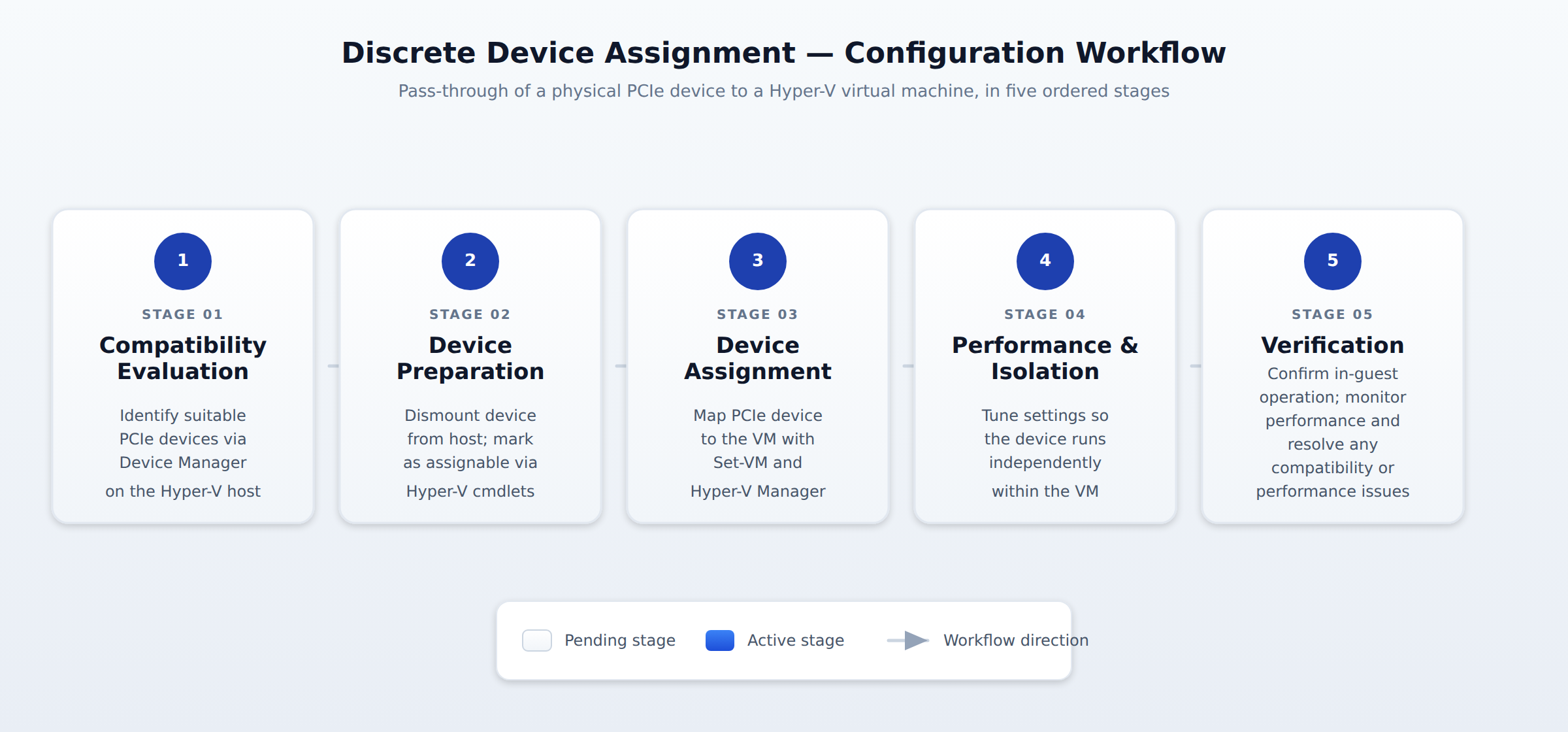
A five-step horizontal process flow showing the Discrete Device Assignment configuration sequence: Compatibility Evaluation, Device Preparation, Device Assignment, Performance and Isolation, and Verification. A pulse travels along the connector arrows and each step highlights in order to indicate the workflow direction.
Discrete Device Assignment (DDA) enables direct allocation of physical PCIe devices to Hyper-V virtual machines. This process requires careful configuration to ensure compatibility, security, and optimal performance.
Compatible devices can be identified and located using the device manager on the Hyper-V host. You should ensure these devices are physically connected and recognized by the system, and use device manager or command-line tools to verify their physical connection paths on the host.
Before assigning a device to a virtual machine, you need to dismount it from the host and mark it as assignable. This can be done using Hyper-V cmdlets in PowerShell or the Hyper-V Manager interface, which involves dismounting the device so it is not in use by the host, then updating its settings to mark it as assignable.
Assigning the PCIe devices to virtual machines involves configuring the virtual machine settings via Hyper-V cmdlets or the Manager. This includes using commands like Set-VM to configure the assignment, then verifying in-guest functionality to ensure the device works as expected.
Discrete Device Assignment (DDA) enables direct allocation of physical PCIe devices to Hyper-V virtual machines. This process requires careful configuration to ensure compatibility, security, and optimal performance. The following sections outline the key steps to setting up DDA in Hyper-V.
First, evaluate hardware compatibility to determine if the PCIe devices are suitable for Discrete Device Assignment. Compatible devices can be identified and located using the device manager on the Hyper-V host. Ensure that these devices are physically connected and recognized by the system. Use device manager or command-line tools to identify compatible PCIe devices and verify their physical connection paths on the host.
Before assigning a device to a virtual machine, you need to dismount it from the host and mark it as assignable. This can be done using Hyper-V cmdlets in PowerShell or the Hyper-V Manager interface. Steps include dismounting the device so it is not in use by the host, then updating its settings to mark it as assignable.
Assigning the PCIe devices to virtual machines involves configuring the virtual machine settings via Hyper-V cmdlets or the Manager. This step is crucial for making sure the device is correctly mapped and functional within the VM. Common tasks include using commands like Set-VM to configure the assignment, then verifying in-guest functionality to ensure the device works as expected.
While configuring DDA, consider isolation and performance to prevent interference and ensure optimal operation. The correct settings can help minimize overhead and maintain device integrity. Devices should operate independently within their assigned VMs, and performance adjustments should be optimized based on the VM's requirements.
After assigning a device, verify its operation within the guest environment. Check if the device performs as expected without causing any disruptions or errors. Use tools within the VM to monitor performance and address any compatibility or performance problems promptly.
 StudyCerts
 StudyCerts