Advanced
Prepare and test your skills

Advanced
Prepare and test your skills
Azure Budgets, Cost Alerts and Advisor Recommendations
Azure Budgets are a core tool for proactive cost governance. They allow you to set spending limits for a defined scope, such as a subscription, resource group, or management group. Budgets can be configured to monitor both actual costs and forecasted costs, sending alerts when spending approaches or exceeds set thresholds. This helps enforce financial accountability and identify major cost drivers before they lead to overspending.
Creating and Configuring Budgets
You create budgets manually in the Azure portal or programmatically using the Budgets API. When defining a budget, you set the total amount, the reset period (monthly, quarterly, or annually), and an expiration date. A key feature is setting multiple alert thresholds, usually as a percentage of the budget. These alerts can notify people via email or trigger automated actions through Action Groups, such as shutting down virtual machines to prevent further spending.
Advanced Budget Automation
For stronger control, budgets can integrate with Azure Automation and Azure Logic Apps to run automated workflows when a threshold is breached. This budget-based automation allows for actions like running a script to deallocate resources or modifying policies to block new, costly deployments without manual intervention. This ensures spending stays within limits even during unattended operation.
Analyzing Costs with Budgets
Beyond alerts, budgets support deeper cost analysis. By studying the trends that trigger alerts, you can pinpoint inefficiencies. This analysis is often done alongside Cost Analysis views. Using the Cost Details API or Exports API to get detailed, unaggregated data allows you to investigate exactly which services, resources, or tags are driving costs, leading to more targeted optimization.
Best Practices for Budget Management
Effective budget management requires regular review and adjustment. Budgets should not be "set and forget"; you should iteratively refine budget amounts and thresholds based on historical data and forecasted needs. Aligning budgets with organizational units using tags and management groups improves cost allocation and reporting, ensuring the right teams are accountable for their cloud spending.
Cost Management Alerts help you monitor and control spending by notifying you when costs pass predefined thresholds. This is essential for optimizing resource use and managing expenses proactively.
Setting Up Cost Alerts
You set up cost alerts within the Cost Management + Billing section of the Azure portal, typically by creating a budget. When creating the budget, you can add filters or tags to define its scope, allowing you to track costs for specific resource groups or services and set relevant alert thresholds.
Customizing and Managing Alerts
You can customize how alerts are grouped—by dimensions, tags, or other fields—to focus on the most relevant information. The Alerts page summarizes all alerts from the last 30 days, and you can filter them by subscription, severity, or condition. Each alert has a details page with more information and response options. Alerts are automatically deleted after 30 days, but the underlying alert condition remains until you resolve it.
Programmatic Management
For advanced integration, you can manage alerts programmatically using Azure Resource Graph and the Alert Management REST API. These tools let you create custom views, analyze alert patterns, and update fired alerts outside the portal, integrating alert management into existing workflows and systems.
Azure Advisor is a primary tool for cost optimization, working alongside budgets and alerts. Its recommendations are updated daily based on actual usage patterns at the subscription and resource group level. By reviewing these insights, administrators can find idle or underutilized resources to cut costs. Integrating Advisor's recommendations into regular governance practices helps keep deployments cost-effective over time.
Evaluating Impact and Recommendations
When reviewing Azure Advisor cost recommendations, prioritize actions by their potential budget impact. High-impact suggestions often involve purchasing Azure savings plans or reserved instances, which offer significant discounts. Advisor calculates potential yearly savings to help justify these changes. Other critical actions include resizing or shutting down underutilized virtual machines to eliminate waste.
Virtual Machine and Resource Efficiency
A key feature is Advisor's monitoring of virtual machine performance over a seven-day period to spot low utilization. A machine is typically flagged if its CPU utilization is 5% or less and its network usage is under 7 MB for at least four days. This data lets administrators make informed decisions to deallocate or resize specific instances. You can even customize these threshold settings to match your organization's specific performance requirements.
Budget-Based Automation Workflow
Process Flow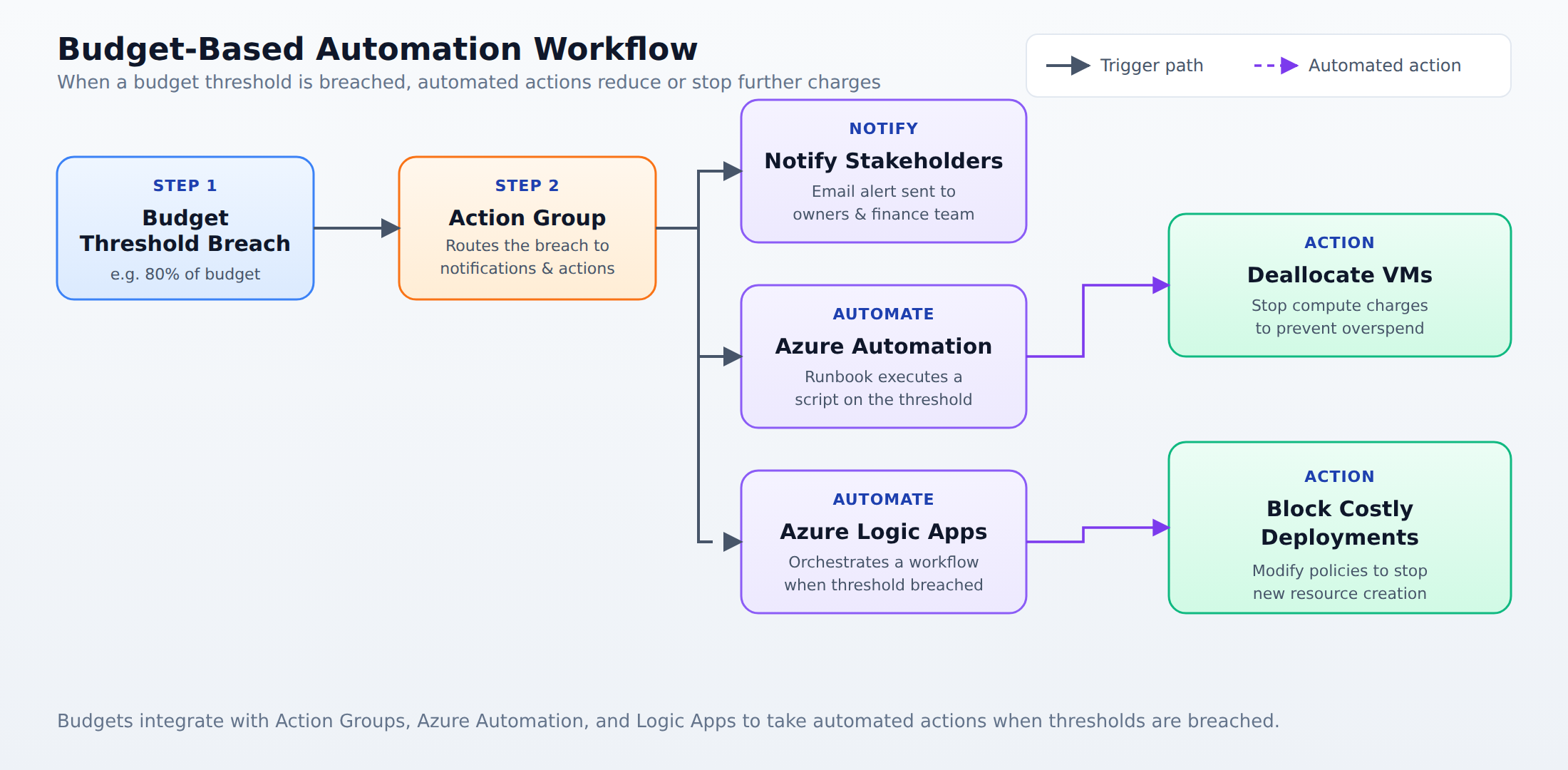
A process flow showing how an Azure budget threshold breach triggers an Action Group, which notifies stakeholders and runs automated workflows in Azure Automation and Logic Apps to deallocate VMs and block costly deployments.
Frequently Asked Questions
How can I automate actions when an Azure Budget threshold is breached?
Azure Budgets can integrate with Azure Automation and Azure Logic Apps to run automated workflows when a threshold is breached, such as running a script to deallocate resources or modifying policies to block new costly deployments without manual intervention.
What are the best practices for managing Azure Budgets?
Best practices include regularly reviewing and adjusting budgets, iteratively refining budget amounts and thresholds based on historical data and forecasted needs, and aligning budgets with organizational units using tags and management groups to improve cost allocation and accountability.
How does Azure Advisor identify underutilized virtual machines for cost optimization?
Azure Advisor monitors virtual machine performance over a seven-day period and flags a machine as underutilized if its CPU utilization is 5% or less and its network usage is under 7 MB for at least four days, allowing administrators to deallocate or resize those instances.
How learners score on this domain
Last updated