Are you a guardian of your domain? Lean how to leverage your aptitude in security to protect Microsoft Azure technologies, with a goal of earning the Microsoft Certified: Azure Security Engineer Associate certification!
Prepare and test your skills

Prepare and test your skills
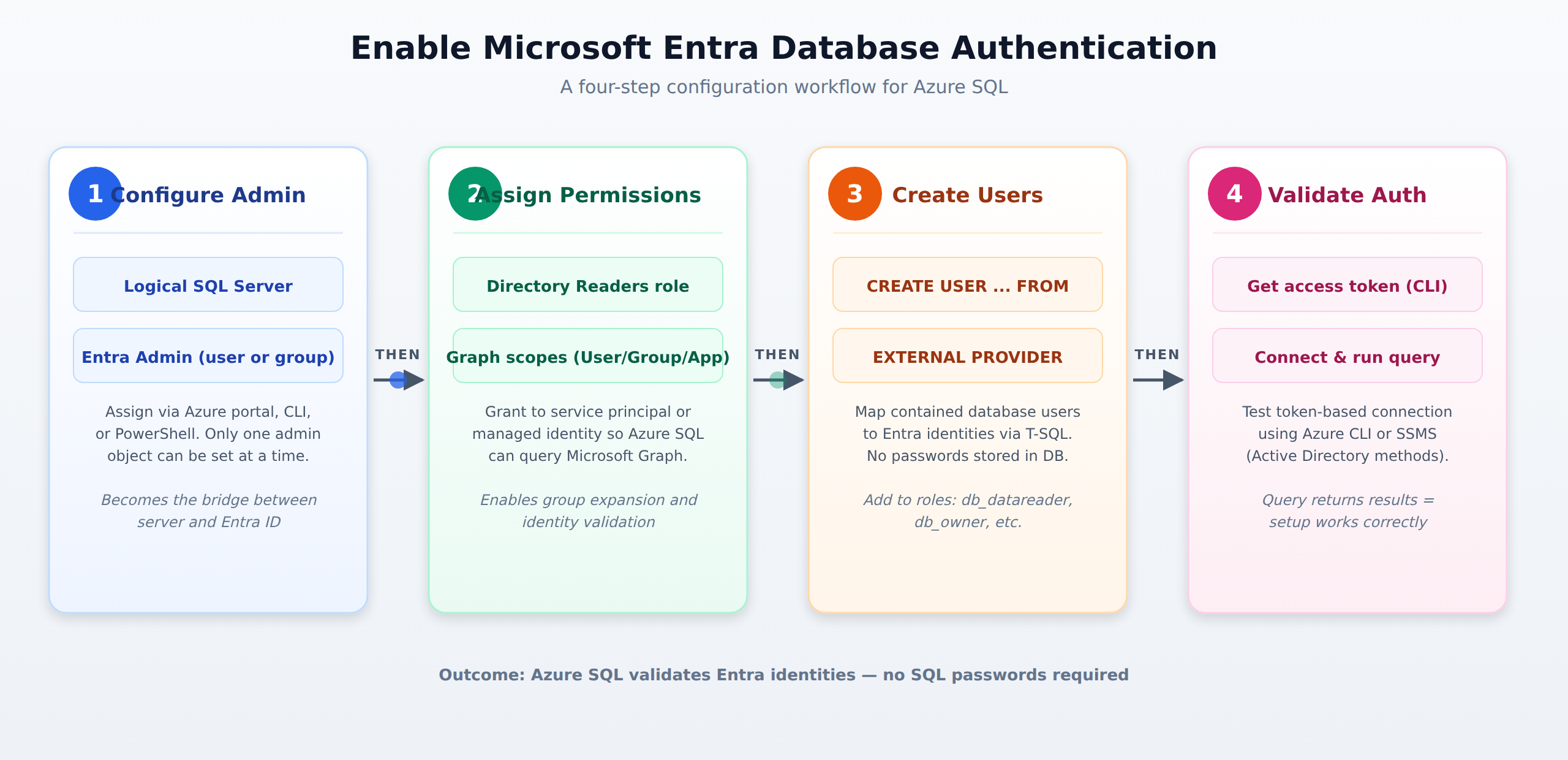
A horizontal process flow showing the four sequential steps to enable Microsoft Entra authentication on Azure SQL: configure the Entra admin, assign Directory Readers, create contained database users, and validate token-based connections.
Microsoft Entra ID authentication centralizes identity management in one place and enables modern security features. Users only need to remember one password, and administrators can enforce multifactor authentication to protect accounts. You can also use managed identities for Azure resources to connect without storing any passwords, which removes a common security risk.
You configure a server-level Azure AD administrator through the Azure portal, Azure CLI, or PowerShell by assigning one Entra user or one Entra group as the administrator. Only one administrator object can be set at a time, but assigning a group is often better because it lets multiple team members inherit admin privileges without changing the server configuration.
Service principals or managed identities need the Directory Readers role or specific Graph scopes such as User.Read.All, GroupMember.Read.All, and Application.Read.All. These permissions let Azure SQL validate external identities, perform group expansion to find all members of a group, and confirm that a principal exists in your directory.
For an Entra user, run `CREATE USER [Alice@contoso.com] FROM EXTERNAL PROVIDER;` to link the database account directly to the Entra identity. For applications, add a service principal to a role with `ALTER ROLE db_datareader ADD MEMBER [MyAppSP];`, and for teams add groups with `ALTER ROLE db_owner ADD MEMBER [DataTeamGroup];`.
Integrating Azure SQL with Microsoft Entra ID lets you manage all identities in one central place and use modern security features. Instead of using traditional SQL usernames and passwords, you can use Azure AD authentication, which brings important benefits. Users only need to remember one password, and administrators can enforce multifactor authentication to protect accounts. You can also use managed identities for Azure resources to connect to databases without storing any passwords at all, which removes a common security risk. These capabilities make your database more secure while also making it easier for users to log in.
The first step in enabling Microsoft Entra authentication is to configure a server-level Azure AD administrator on your logical SQL server or managed instance. You can do this through the Azure portal, Azure CLI, or PowerShell by assigning one Entra user or one Entra group as the administrator. Only one administrator object can be set at a time, but assigning a group is often the better choice because it lets multiple team members inherit admin privileges without changing the server configuration. This administrator account becomes the bridge between your database server and Entra ID, allowing the server to validate identities from your directory.
After the administrator is in place, your service principal or managed identity needs the right permissions to query Entra ID through Microsoft Graph. You must assign the Directory Readers role or specific Graph scopes such as User.Read.All, GroupMember.Read.All, and Application.Read.All. These permissions let Azure SQL validate external identities, perform group expansion to find all members of a group, and confirm that a principal actually exists in your directory. You can assign these roles through the Entra portal or via Azure CLI and PowerShell, and the assignment takes effect quickly so your database can immediately start validating Entra identities.
With the infrastructure ready, you create contained database users mapped to external Entra identities using T-SQL commands. For an Entra user, you run CREATE USER [Alice@contoso.com] FROM EXTERNAL PROVIDER;, which links the database account directly to her Entra identity without needing a password stored in the database. For applications, you add a service principal to a role with ALTER ROLE db_datareader ADD MEMBER [MyAppSP];, and for teams you can add groups with ALTER ROLE db_owner ADD MEMBER [DataTeamGroup];. These commands let Entra users, groups, and applications connect to your database using the external provider, and they receive the exact permissions assigned to their role.
You can validate authentication by testing token-based connections with the Azure CLI or SQL client tools. Using the CLI, run az account get-access-token --resource https://database.windows.net/ to get a short-lived access token, then use that token in your connection string to prove the setup works. In tools like SSMS, select Active Directory Integrated or Active Directory Managed Identity as your authentication method, then run a simple query to confirm you can access the database successfully. If the query returns results, your Entra authentication is working correctly.
 StudyCerts
 StudyCerts