Are you a guardian of your domain? Lean how to leverage your aptitude in security to protect Microsoft Azure technologies, with a goal of earning the Microsoft Certified: Azure Security Engineer Associate certification!
Prepare and test your skills

Prepare and test your skills
Azure Policy enforces rules on Azure resources by defining a condition and an effect such as deny, audit, or append. Multiple policy definitions can be grouped into an initiative (also called a policy set) to achieve a broader compliance goal like meeting a security baseline. To apply a policy or initiative, you create an assignment at a management group, subscription, or resource group scope. The assignment evaluates existing resources and applies the effect during creation or update. When a resource violates a policy, Azure Policy can block the operation (deny), log the violation (audit), or add missing tags (append). Compliance is monitored through the Azure portal or Azure Resource Graph, which shows which resources are compliant, non-compliant, or excluded. The hierarchy is clear: definitions are reusable, initiatives combine them, and assignments bind them to a scope.
Azure Key Vault stores secrets, keys, and certificates. Its network rules act as the first gate: by default, Key Vault accepts traffic from all networks, but you can enable a firewall that blocks everything except specified IP ranges or selected virtual networks. When you allow a virtual network, you must enable the Microsoft.KeyVault service endpoint on that subnet to keep traffic within the Azure backbone. You can also allow trusted Microsoft services like Azure Resource Manager or Azure Backup to bypass the firewall. Each vault has its own firewall configuration, so network settings are enforced per vault. If a client cannot reach the vault, the request is denied before any authentication or authorization check occurs.
Access to Key Vault uses two independent authorization models: vault access policies and Azure RBAC. Vault access policies are the older model, granting permissions directly to users, groups, or service principals for operations like get, list, set, delete on secrets, keys, and certificates. You can assign up to 1024 access policy entries per vault. Azure RBAC is the newer model, using built-in roles such as Key Vault Secrets User or Key Vault Administrator at the vault scope, and integrates with Azure's broader role-based system. A principal must have permission through at least one model to perform an operation. The choice between models depends on whether you need granular per-vault control (vault access policies) or unified RBAC across all Azure resources. Always apply the principle of least privilege.
Key Vault stores three types of objects: secrets (connection strings or passwords), keys (cryptographic keys for encryption or signing), and certificates (X.509 certificates). Secrets are simple byte strings with optional expiration and automatic rotation. Keys are stored in a hardware security module (HSM) backed by FIPS 140-2 Level 2 or Level 3, depending on the vault SKU. You can create keys, import existing keys, and perform cryptographic operations without the key leaving the HSM. Certificates can be self-signed or issued by a certificate authority (CA), and Key Vault manages the full lifecycle—creation, renewal, and revocation. Each object has a unique URL and can have multiple versions. Access policies, expiration dates, and alerts help you manage these objects securely.
Key rotation replaces a cryptographic key with a new version to limit the impact of a compromised key. In Azure Key Vault, you can configure automatic rotation for keys by setting a rotation policy that specifies a period like every 90 days and optionally a time offset before expiration to trigger rotation. Key Vault then creates a new key version automatically and marks the old version as disabled or expired based on the policy. For secrets, automatic rotation can be enabled by linking the secret to a Key Vault certificate with a rotation policy. You can also rotate keys manually by creating a new version and updating applications. The lifecycle includes a current active version, previous versions retained for decryption of older data, and expired versions that are no longer usable. Applications must handle version changes, often by referencing the key by name rather than by a specific version.
Key Vault provides backup and restore operations for secrets, keys, and certificates. A backup downloads an encrypted blob containing the object and all its versions. You can store this blob in Azure Storage or another location, and restore it to the same or a different Key Vault in the same Azure region and subscription. The restore recreates the object with its original name and version history. Backup does not include the vault's access policies or network settings—those must be configured separately. Backup and restore are not supported for Key Vault Managed HSM; that service uses a different disaster recovery mechanism. The relationship is straightforward: backup creates a portable copy, and restore recreates the object in a target vault while preserving its unique identifier and version history.
Backups of Key Vault objects are themselves sensitive and must be protected. The backup blob is encrypted at rest by Azure, but you should store it in a secure location such as an Azure Storage account with restricted access. Use Azure RBAC or storage account keys to control who can read or delete the backup files. Enable soft delete on the storage account to recover accidentally deleted backups. For extra protection, you can encrypt the backup blob with a customer-managed key before storing it. Treat the backup blob with the same security as the original object—it contains actual secret values or key material. Implement a retention policy to delete old backups when they are no longer needed, reducing exposure. Access to backups should be logged via Azure Monitor.
Asset management in Azure tracks and governs all resources—virtual machines, storage accounts, databases, and more—to ensure they meet security and compliance requirements. Key controls include using Azure Policy to enforce tagging (like "Environment" or "Owner") and to deny creation of resources without required tags. Use Azure Resource Graph to query and inventory resources across subscriptions. Azure Blueprints define a repeatable set of policies, RBAC roles, and resource templates that enforce a baseline for new subscriptions. Azure Management Groups organize subscriptions hierarchically and allow policies at the group level to cascade down to all child subscriptions. Microsoft Defender for Cloud assesses resource configurations and provides recommendations. The hierarchy flows from management groups to subscriptions to resource groups to resources, so a single policy at the management group level governs all subscriptions underneath.
Microsoft Defender for Cloud uses Secure Score to measure how well a cloud environment is protected. The score is calculated by checking security controls across subscriptions and resources, giving a percentage that reflects the current security posture. Higher scores mean fewer vulnerabilities. The Inventory feature lists all resources in Azure, AWS, or GCP, allowing security teams to see what exists and assess each item's security status. Inventory feeds data into Secure Score: when a resource is discovered, Defender for Cloud evaluates it against security recommendations and assigns points based on how many controls are in place. Remediation—fixing issues identified in inventory—raises the Secure Score, creating a continuous improvement cycle.
Defender for Cloud can check an environment against established security frameworks such as Azure Security Benchmark, NIST, CIS, and PCI-DSS. These frameworks provide predefined sets of controls that define secure configurations for different industries and regulatory requirements. The compliance dashboard shows which controls are met, partially met, or not met. Recommendations are mapped to framework controls, so when a recommendation is satisfied, the corresponding framework control shows as compliant. This means fixing a single security issue can improve compliance across multiple frameworks simultaneously.
Compliance standards can be turned on or off depending on what regulations apply to the organization. Defender for Cloud supports multiple built-in standards and allows teams to prioritize which ones to track based on industry or geography. Managing standards involves selecting frameworks, reviewing current compliance status, and assigning remediation tasks. Continuous monitoring is set up so that any new resource deployed is automatically checked against the selected frameworks, ensuring compliance does not degrade over time as the environment grows. Each standard triggers a specific set of security recommendations.
Organizations with unique security requirements can create custom standards in Defender for Cloud. These define specific security controls not covered by built-in frameworks. Creating a custom standard involves specifying the control description, the logic to evaluate it, and remediation steps if the control fails. Custom standards are useful when companies have internal security policies or operate in industries with specialized regulations. They are treated the same as built-in standards in the compliance dashboard, contributing to the overall compliance score while maintaining the same assessment and remediation workflow.
Defender for Cloud can protect resources in Amazon Web Services (AWS) and Google Cloud Platform (GCP) in addition to Azure. Connecting these external clouds involves installing the Defender for Cloud agent or enabling the connection through the cloud provider's console. Once connected, Defender for Cloud discovers resources in those environments and applies the same security recommendations. This creates a unified security view across all environments, so teams do not need separate tools. Security findings from AWS and GCP appear alongside Azure findings in the same dashboard, relying on properly configured connectors to flow data into Defender for Cloud for analysis and scoring.
Microsoft Defender External Attack Surface Management (EASM) discovers and monitors external-facing assets that could be targeted by attackers, such as public IP addresses, domains, SSL certificates, and web applications visible from the internet. EASM continuously scans the internet to find new assets and identify potential vulnerabilities. This feature complements Defender for Cloud: EASM focuses on what attackers can see from outside, while Defender for Cloud focuses on internal security controls. Findings from EASM can be imported into Defender for Cloud to create a complete picture of the attack surface, helping security teams prioritize remediation of externally exposed risks.
Microsoft Defender for Cloud is a cloud-native security platform that protects Azure workloads. To enable protection, you first enable Defender for Cloud on your Azure subscription, activating security posture management. Then you enable individual workload protection plans such as Defender for Servers, Defender for Databases, and Defender for Storage. Each plan enables specific threat detection sensors and security alerts tailored to that workload type. Enabling the core platform is the first step before any workload-specific protection becomes active, as plans build on the foundational capabilities.
Microsoft Defender for Servers protects virtual machines by deploying the Log Analytics agent or the Azure Defender agent, which collects security events and sends them to Defender for Cloud for analysis. It detects threats like brute force attacks, malware, and suspicious process execution. You configure agent settings to control which events are collected and how often data is sent, and can set up auto-provisioning so new VMs automatically receive the agent. Protection extends to both Windows and Linux VMs.
Microsoft Defender for Databases protects database services such as Azure SQL, SQL Server on VMs, and Azure Cosmos DB. It enables vulnerability assessment scans to identify weak configurations and missing patches, plus threat detection that spots unusual query patterns indicating attacks like SQL injection. You configure the sensitivity of threat detection alerts and can integrate with Azure Sentinel for advanced security operations, analyzing audit logs and database activity in real time.
Microsoft Defender for Storage protects blob storage accounts, Azure Files, and Azure Data Lake Storage from threats like malware upload and data exfiltration. It scans uploaded files for malware using Microsoft Defender antivirus engines and generates alerts when suspicious activity occurs. You configure which storage accounts to protect and can enable or disable specific capabilities per account. Scanning happens when files are uploaded, and the service stores threat intelligence metadata without storing the actual file content.
Agentless scanning provides threat detection for VMs without installing any software on them, which is useful for large environments or when agent installation is not feasible. The scanner runs from within Azure and connects to VMs through their network interface to perform periodic scans. It detects vulnerabilities, misconfigurations, and indicators of compromise by reading disk images and memory dumps. Agentless scanning complements agent-based protection rather than replacing it, and you can run both approaches on the same VMs for layered defense. You configure scanning frequency and scope through Defender for Cloud settings, and results appear in the same vulnerability dashboard as agent-based findings.
Defender Vulnerability Management identifies security weaknesses in VMs and prioritizes them based on risk, so teams can fix the most dangerous issues first. The service scans for missing OS patches, weak security settings, exposed credentials, and vulnerable applications. Results flow into Defender for Cloud's recommendations, where you can track remediation progress and assign tasks. The vulnerability data integrates with Microsoft Defender for Endpoint to correlate findings with active threats on the same machines. You configure the scanning schedule and can exclude specific VMs from scanning when needed.
Microsoft Defender for Cloud DevOps Security integrates with GitHub, Azure DevOps, and GitLab to protect code repositories and CI/CD pipelines. The integration scans code for secrets, vulnerabilities, and misconfigurations during development, flagging issues before they reach production. You connect each platform by authorizing Defender for Cloud to access your repositories, which enables security scans and pulls findings into the unified Defender for Cloud dashboard. Alerts from all connected DevOps platforms appear alongside Azure workload alerts, giving security teams a single view of risks across development and production environments. You configure which repositories to scan, what types of issues to detect, and how alerts are routed.
Microsoft Defender for Cloud generates security alerts when it detects potential threats to your Azure resources. Alerts appear in the Defender for Cloud portal and are prioritized by severity, helping you focus on the most critical issues first. Each alert provides details about what was detected, which resource is involved, and the potential impact. Responding typically involves reviewing evidence, taking remediation steps like isolating a compromised virtual machine, and then closing the alert to indicate resolution.
Workflow automation in Defender for Cloud allows you to automatically trigger actions when a new security alert is generated. You create an automation rule that links a specific alert trigger to an Azure Logic App. The Logic App is a predefined workflow that can perform tasks like creating a ticket in your IT service management (ITSM) system, sending an email notification, or running a script to apply a security fix. This automation ensures rapid, consistent responses to common threats without manual intervention, containing incidents quickly.
To monitor network security, you use Azure Monitor to collect logs and metrics from your resources. You define Data Collection Rules (DCRs) that specify exactly which data to gather, such as network security group (NSG) flow logs or virtual machine performance counters. The DCR tells Azure Monitor where to pull data from (the source) and where to send it, typically to a Log Analytics workspace for analysis and long-term storage. Once collected, you can query this data to look for suspicious network patterns or to troubleshoot performance issues affecting security.
Microsoft Sentinel is a cloud-native Security Information and Event Management (SIEM) system that aggregates security data from many sources. To bring data into Sentinel, you configure data connectors. Each connector links to a specific service like Azure Activity Logs, Microsoft 365 Defender, or a third-party firewall, and pulls raw log data from that source into Sentinel's underlying Log Analytics workspace. Configuring connectors is the essential first step to centralizing security monitoring—without data flowing in, Sentinel cannot perform analysis or generate insights.
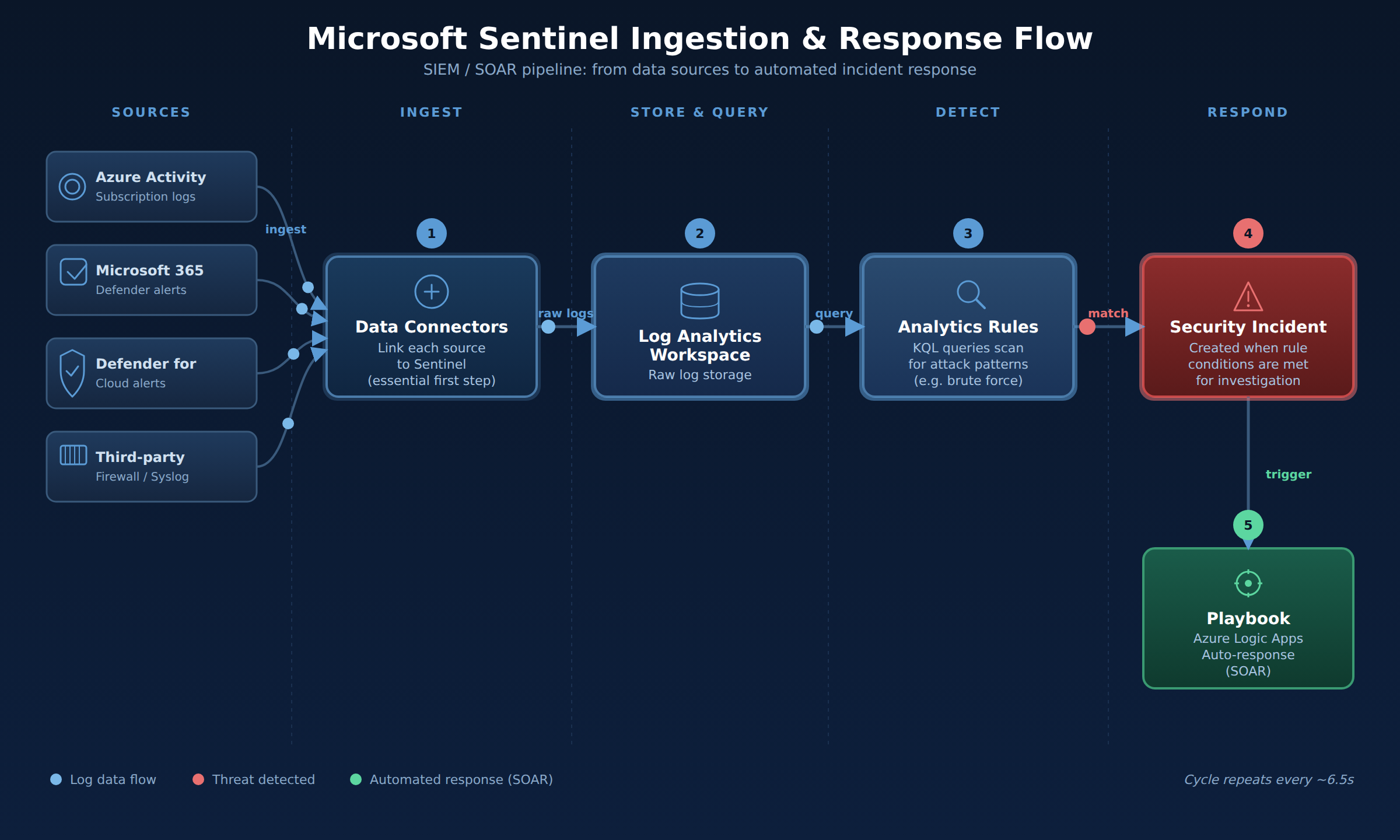
A process flow showing security data sources feeding through data connectors into a Log Analytics workspace, where analytics rules create incidents that trigger Logic Apps playbooks for automated response.
Once data is flowing into Sentinel via connectors, you use analytics rules to detect threats within that data. An analytics rule is a query or a built-in template that continuously searches the logs for specific patterns indicative of an attack, such as multiple failed sign-in attempts from different locations. When the rule's conditions are met, it creates a security incident in Sentinel for your team to investigate. You can enable pre-built rules from Microsoft or create custom rules tailored to your environment. Tuning these rules is critical to reduce false positives and ensure you are alerted to genuine security events.
Sentinel automation uses playbooks to respond automatically to incidents. A playbook is built on Azure Logic Apps and contains a sequence of steps that execute when triggered by a Sentinel incident or alert. For example, a playbook can automatically gather additional context about a suspicious IP address, disable a compromised user account in Azure Active Directory, and post a message to a team channel. You attach a playbook to an analytics rule so the response begins the moment an incident is generated. This Security Orchestration, Automation, and Response (SOAR) speeds up containment and frees security analysts to focus on complex investigations.
Vault access policies grant permissions directly to users, groups, or service principals for operations on keys, secrets, and certificates with up to 1024 entries per vault, whereas Azure RBAC uses built-in roles at the vault scope to integrate with Azure's broader role-based system. A principal must have permission through at least one model to perform an operation. Vault access policies provide granular per-vault control, while Azure RBAC enables unified access management across all Azure resources.
Agentless scanning connects to virtual machines through their network interface to perform periodic scans of disk images and memory dumps without installing local software. It detects vulnerabilities, misconfigurations, and indicators of compromise from within Azure while complementing existing agent-based protection. Both agentless and agent-based approaches can run simultaneously on the same virtual machines to provide layered defense.
Analytics rules continuously scan ingested log data for attack patterns to automatically create security incidents when threat conditions are met. Playbooks, which are automated workflows built on Azure Logic Apps, attach to these analytics rules to execute predefined remediation steps as soon as an incident triggers. This integration enables automated threat containment, such as disabling compromised accounts or gathering additional context about suspicious IP addresses.
Microsoft Defender External Attack Surface Management discovers and monitors internet-facing assets like public IP addresses, domains, SSL certificates, and web applications from an external attacker's perspective. Microsoft Defender for Cloud focuses on assessing internal security controls and workload configurations across cloud environments. Findings from External Attack Surface Management can be imported into Defender for Cloud to provide a unified view of both external and internal risks.
 StudyCerts
 StudyCerts