Are you a guardian of your domain? Lean how to leverage your aptitude in security to protect Microsoft Azure technologies, with a goal of earning the Microsoft Certified: Azure Security Engineer Associate certification!
Prepare and test your skills

Prepare and test your skills
In Azure AD, OAuth2 permission scopes and app roles enable fine-grained authorization for both user-delegated and application-level access. OAuth2 scopes represent specific API access rights that apps request on behalf of users, while app roles define role-based access control (RBAC) within an application and appear as roles claims in tokens. Applying the principle of least privilege ensures apps only receive the permissions they truly need.
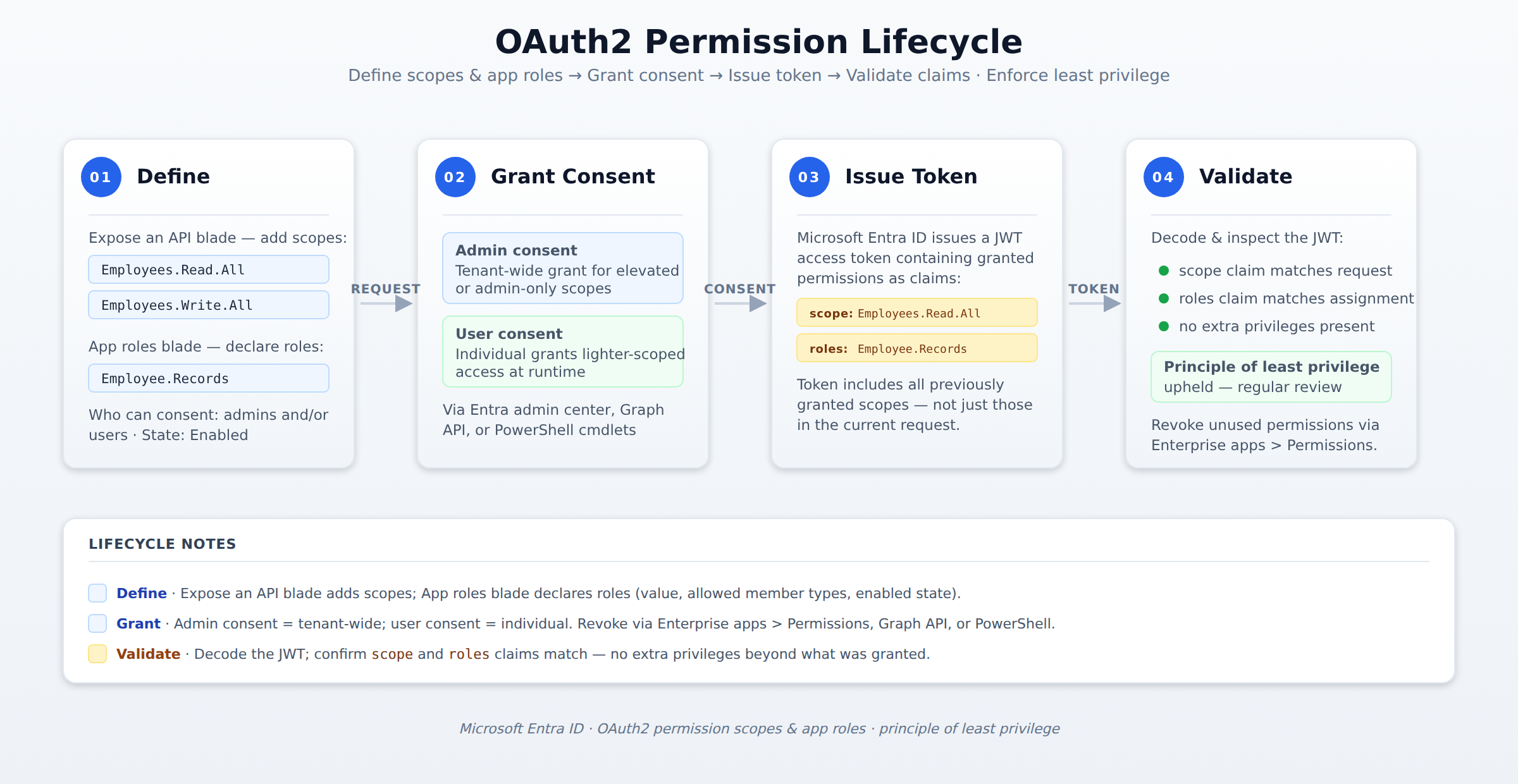
A horizontal process flow showing the four stages of an OAuth2 permission lifecycle in Microsoft Entra ID: defining scopes and app roles in an app registration, granting consent (admin or user), issuing an access token with scope and roles claims, and validating the JWT to enforce least privilege. A token packet animates left to right through each stage in sequence.
You can define scopes and declare app roles in the application’s app registration manifest or in the Azure portal’s App registration settings. In the manifest, configure the requiredResourceAccess property for scopes and the appRoles array for roles. In the portal, use the Expose an API blade to add scopes and the App roles blade to create roles with a display name, value, description, allowed member types (Users, Applications, or both), and an enabled status.
After defining scopes and roles, you must assign consent and grant permissions so apps can request tokens. Admin consent flows allow tenant-wide grant, while user consent flows let individuals grant lighter scoped access. The choice depends on whether the scope or role needs elevated approval. Permissions can be granted or revoked using the Microsoft Entra admin center (under Enterprise apps > Permissions), the Microsoft Graph API (OAuth2PermissionGrant and AppRoleAssignment endpoints), or PowerShell cmdlets such as Get-EntraServicePrincipalAppRoleAssignment and Remove-EntraOAuth2PermissionGrant. When you revoke unused or excess permissions, static consent entries in the app registration and enterprise application must be cleaned up to maintain security posture.
To validate that tokens carry correct access, decode and inspect the access token or ID token JWT. Check for scope claim entries that match the requested OAuth2 scopes and roles claim entries that match assigned app roles, and confirm that no extra privileges appear beyond the intended scopes or roles. Regular review and token validation uphold the principle of least privilege, ensuring applications only operate within the permissions you have explicitly defined and granted.
OAuth2 scopes represent specific API access rights that apps request on behalf of users, while app roles define role-based access control (RBAC) within an application and appear as roles claims in tokens.
You define scopes and app roles in the application's app registration manifest or in the Azure portal. In the manifest, configure the requiredResourceAccess property for scopes and the appRoles array for roles; in the portal, use the Expose an API blade to add scopes and the App roles blade to create roles.
You decode and inspect the access token or ID token JWT. You check for scope claim entries that match the requested OAuth2 scopes and roles claim entries that match assigned app roles, confirming no extra privileges appear beyond the intended scopes or roles.
A security-conscious organization is developing a critical backend daemon service that requires unattended access to Microsoft Graph. This service needs to perform two distinct, high-privilege operations:
The organization's security policy strictly enforces the principle of least privilege and mandates that all necessary permissions for this daemon service must be granted through admin consent.
Which configuration approach correctly defines the required permissions and ensures they are granted appropriately for this application?
Define Directory.ReadWrite.All and Mail.ReadWrite as Application permissions in the app registration manifest, and then grant these permissions using PowerShell, requiring admin consent.
Define User.Read.All as an Application permission and Mail.Send as a Delegated permission in the app registration, then grant both using PowerShell, requiring admin consent for both.
Define User.Read.All and Mail.Send as Delegated permissions in the app registration, and instruct users to grant user consent when first accessing the service.
Define User.Read.All and Mail.Send as Application permissions in the app registration manifest or Azure portal, and then grant these permissions via the Enterprise applications blade in the Azure portal, requiring admin consent.
 StudyCerts
 StudyCerts