Advanced
Prepare and test your skills

Advanced
Prepare and test your skills
Configuring Microsoft Entra User and Group Properties
User Lifecycle Automation
Managing the identity lifecycle in Azure follows the Joiner-Mover-Leaver (JML) pattern, which ensures users have the correct access from their first day and lose it immediately when they leave. Organizations use HR-driven provisioning to synchronize data from authoritative sources such as Workday or SuccessFactors directly into Microsoft Entra ID, reducing manual errors. Lifecycle Workflows then trigger specific tasks based on employment milestones, such as granting a new hire access to a team mailbox or removing access when an employee is terminated.
HR-Driven User Lifecycle Automation (JML)
Process Flow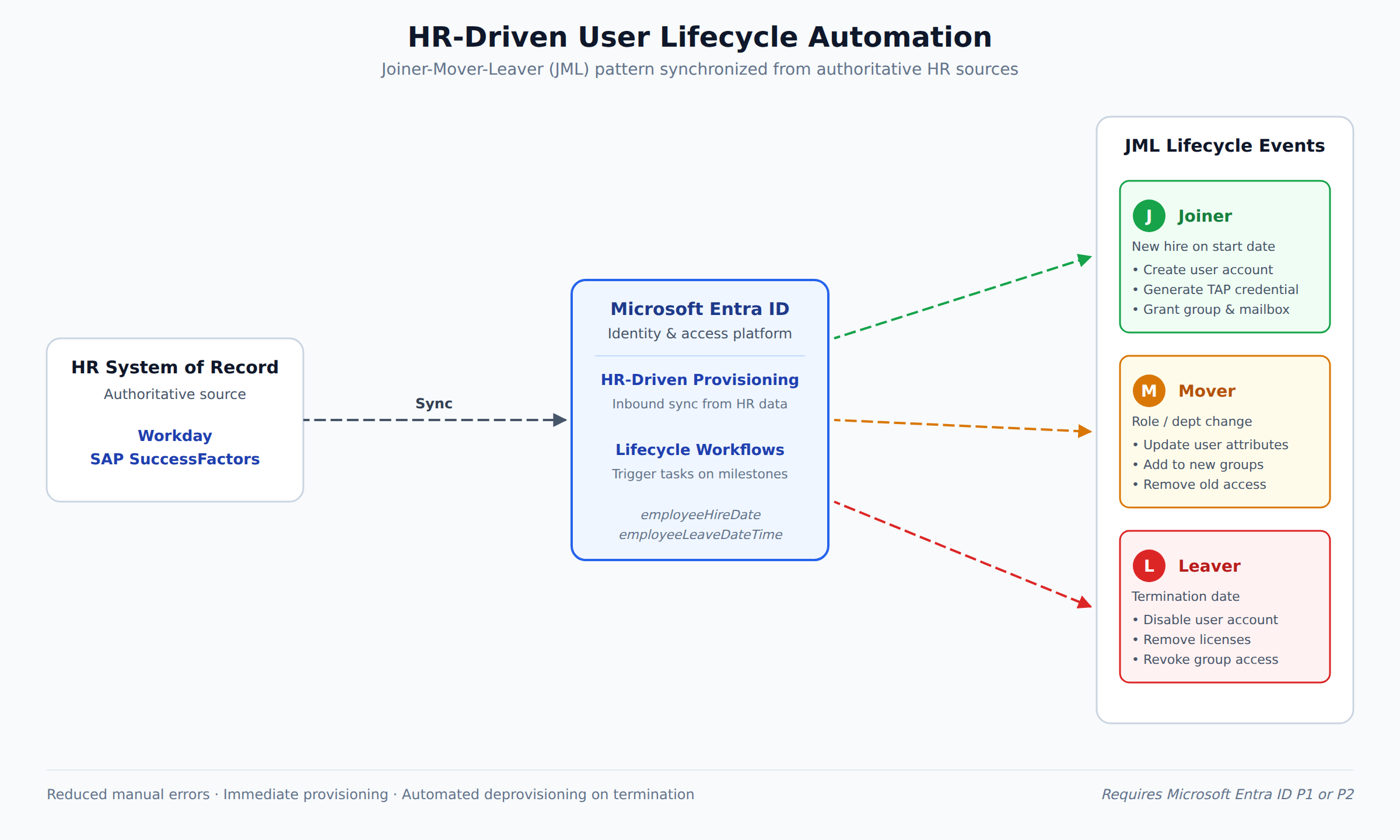
A process flow showing HR data from Workday or SuccessFactors synchronizing into Microsoft Entra ID, which triggers Lifecycle Workflows for Joiner, Mover, and Leaver events that automatically provision, update, and deprovision user access.
Group Management and Licensing
Efficient resource allocation relies on groups that use either Assigned or Dynamic membership. Dynamic groups update membership automatically based on user attributes, such as department or job title, making them essential for managing access at scale without manual intervention. Common group types include Security Groups for shared resource access, Microsoft 365 Groups for collaboration with shared mailboxes and calendars, and Dynamic Groups that update based on attribute rules. Administrators can also use Group-based licensing, which automatically assigns software seats to users when they join a licensed group and removes them when they leave.
External Identities and Entitlement Management
External Identities and B2B Collaboration let organizations share resources securely with partners and vendors who use their own credentials to sign in. The Entitlement Management feature bundles groups, applications, and SharePoint sites into Access Packages, which guests can request through the My Access portal. Automated lifecycle controls create guest accounts only upon approval and remove them once the access period expires, providing a streamlined self-service experience and ensuring external access is temporary.
Access Security and Governance
Conditional Access acts as a policy engine that evaluates signals such as user location, device compliance, and sign-in risk before granting access to resources. Multi-Factor Authentication (MFA) adds an extra layer of protection. For sensitive accounts, Privileged Identity Management (PIM) provides Just-In-Time (JIT) access, reducing the risk of permanent administrative privileges. Long-term security is enforced through Access Reviews, which require resource owners to periodically certify that users still need their assigned permissions, and Microsoft Entra ID Protection, which uses machine learning to detect user risks like leaked credentials or impossible travel patterns. These tools together provide visibility and audit logs to meet compliance requirements.
Group Types and Membership
Microsoft Entra ID uses Security groups and Microsoft 365 groups to manage access and collaboration. Security groups control access to shared resources such as applications or SharePoint sites and can include users, devices, and service principals. Microsoft 365 groups focus on teamwork, allowing external members to participate in shared conversations and files. Using groups instead of assigning permissions to individual users helps maintain the principle of least privilege across the organization.
Dynamic Membership Rules
Administrators choose between Assigned membership, where users are added manually, and Dynamic membership, which uses rules based on attributes like department or location to automatically add or remove members. Dynamic User Groups use user attributes (e.g., "Job Title"), while Dynamic Device Groups use device attributes (e.g., "OS Version"). Dynamic groups require a Microsoft Entra ID P1 license for each unique user member.
Role Delegation via Groups
Assigning Administrator roles to groups allows efficient delegation of management tasks without over-provisioning access. Permissions are granted based on job functions rather than individual identities, which is more scalable. For example, the Application Administrator or Cloud Application Administrator roles can be assigned to a group, providing granular control over enterprise apps without giving the powerful Global Administrator role to users who only need specific management abilities.
Group-Based Licensing and Automation
Group-based licensing simplifies providing software access to many users at once. When a user joins a licensed group, they automatically receive the necessary service plans, and those plans are removed when they leave the group. This automation reduces manual errors and eliminates the need for complex PowerShell scripts. Similarly, group assignments can automate access to enterprise applications as the organization grows.
Governance and Advanced Structures
Regular Access Reviews ensure group memberships stay accurate by requiring periodic re-certification of a user’s need for access. Privileged Identity Management (PIM) can be used to grant just-in-time access to groups. Assigning at least two owners to every group ensures continuity if one administrator is unavailable. Advanced structures include Nested groups, where one security group is added as a member of another. Members of the parent group inherit the permissions assigned to the child group, but nesting is only supported for Security groups, not Microsoft 365 groups. Groups synced from on-premises Active Directory must still be managed at the source rather than in the Azure portal.
User Attributes
Configuring user properties in Microsoft Entra ID involves updating the attributes that define each account, such as the Name (display name), Email (primary email address), and Roles (permissions and access levels). Accurate configuration ensures that users have appropriate access to resources and that their information is correctly represented for communication and collaboration.
Role Assignment Process
To assign a role, an administrator first determines the scope of the assignment—whether it applies to a management group, subscription, resource group, or a specific resource. They navigate to the resource in the Azure portal, open the Access control (IAM) page, and go to the Role assignments tab. From there they click Add > Add role assignment and select the appropriate role on the Role tab. Roles can be filtered by type and category to find the correct one quickly.
Administrator Roles
For assigning privileged roles with higher levels of access, the administrator selects the Privileged administrator roles tab. This tab lists roles that have broad permissions within the directory, such as Global Administrator or Application Administrator. Using this tab ensures that elevated permissions are granted only when needed and through the proper process.
Importance of Accurate Configuration
Accurate user properties maintain access control by ensuring users have only the permissions they need, support governance by reducing the risk of unauthorized access, and keep representation correct so that user information in the directory reflects real people. By carefully managing these attributes, administrators create a secure and well-governed Azure environment.
Frequently Asked Questions
What license is required to use dynamic membership groups in Microsoft Entra ID?
Dynamic groups require a Microsoft Entra ID P1 license for each unique user member. These groups automatically add or remove members by evaluating rules based on user attributes, such as job title, or device attributes, such as operating system version.
Which group types support nested groups in Microsoft Entra ID, and how does permission inheritance work?
Group nesting is supported only for Security groups and is not supported for Microsoft 365 groups. When one security group is added as a member of another, members of the parent group inherit the permissions that are assigned to the child group.
How does group-based licensing work in Microsoft Entra ID?
Group-based licensing automatically assigns software seats and service plans to users when they join a licensed group and removes those licenses when they leave. This automation reduces manual administrative errors and eliminates the need for complex PowerShell scripts.
How does Entitlement Management manage access for external guests in Microsoft Entra ID?
Entitlement Management bundles groups, applications, and SharePoint sites into access packages that external guests can request through the My Access portal. It provides automated lifecycle controls that create guest accounts only upon approval and remove them once the access period expires.
How learners score on this domain
Last updated