Advanced
Prepare and test your skills

Advanced
Prepare and test your skills
Entra B2B Guest Access and Cross-Tenant Settings
Control Collaboration with External Collaboration Settings
You can manage external collaboration through tenant-wide settings that define invitation policies and guest user permissions. Key configurations include determining who can invite guests, such as restricting this ability to administrators or specific roles like the Guest Inviter. Additionally, you can set guest user access levels, limiting their ability to view directory information. These options range from granting the same access as members to restricting guests to only their own profile data. Another critical feature is the use of allowlists or blocklists for specific email domains to permit or deny invitations from entire organizations.
Implement Cross-Tenant Access Settings
For collaborating with other Microsoft Entra ID organizations, cross-tenant access settings provide granular control over both inbound and outbound access. You can define a default policy that applies to all external tenants, such as blocking all inbound access by default, and then create organization-specific policies to allow access for trusted partners. These policies can be scoped to specific users, groups, or applications within the external tenant. Furthermore, you can trust multifactor authentication (MFA) and device compliance claims from these partners. This allows users who have already met these requirements in their home tenant to access your resources without repeated prompts.
Manage External User Lifecycle and Access
Governance extends to the entire lifecycle of external users. You can use Microsoft Entra entitlement management to create access packages published to connected organizations. This setup ensures automatic, time-bound access to resources with built-in approval workflows and access reviews. For user registration, API connectors can be used during self-service sign-up to collect custom attributes, which can then be used for access assignments. To maintain security, administrators must establish processes to review and remove users who no longer need access using tools like access reviews and PowerShell scripts.
Secure Collaboration Across Microsoft Services
External collaboration settings also integrate with Microsoft 365 services like Teams, SharePoint, and OneDrive. It is recommended to enable SharePoint and OneDrive integration with Microsoft Entra B2B to leverage its authentication and management capabilities. You can configure external sharing policies within these services, but note that they cannot be more permissive than the settings configured in Microsoft Entra ID. This dependency ensures a consistent and secure collaboration experience across all Microsoft platforms.
Onboarding and Identity Providers
Microsoft Entra B2B collaboration allows organizations to securely share applications with external partners by using their existing identities. This process supports various identity providers, including social accounts like Google or enterprise-level SAML federation. Administrators can initiate invitations through the Azure portal, PowerShell, or the Microsoft Graph API to streamline the onboarding process. To scale these efforts, self-service sign-up user flows enable guests to register themselves while allowing the host to collect specific user attributes.
The Invitation Redemption Process
The invitation redemption process occurs when a guest user follows a link in an email or uses a direct link to access a resource. If a user lacks a Microsoft account, email one-time passcodes (OTP) serve as a fallback authentication method to ensure access. Successful redemption creates a guest user object in the directory, typically identified by a unique User Principal Name (UPN) format containing the "#EXT#" identifier. Troubleshooting often involves checking allowlists or blocklists in the external collaboration settings to ensure the user's domain is permitted.
B2B Invitation Redemption Flow
Process Flow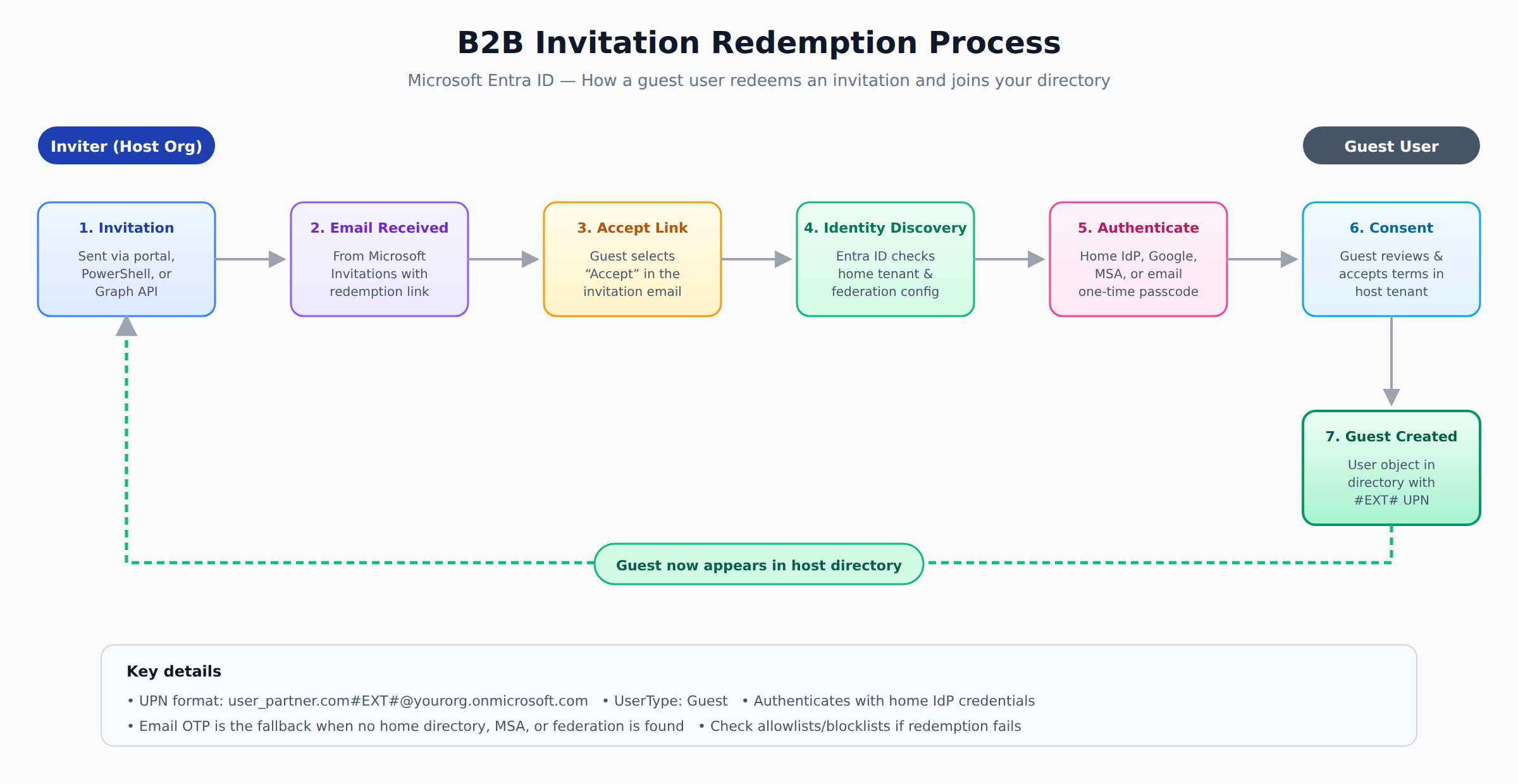
A horizontal process flow showing the seven steps of Microsoft Entra B2B invitation redemption, from invitation email through identity discovery and authentication to guest object creation in the directory.
Lifecycle Automation and Account Clean-Up
Managing the lifecycle of guest accounts involves tracking their status from onboarding to eventual removal. Entitlement management helps automate this by using access packages, which define the resources and duration of access for external users. Users who lose all assignments can be automatically removed from the tenant to prevent the accumulation of stale accounts. Regular access reviews are essential for attestation, ensuring that only those with a current business need retain their permissions.
Identity Type Transitions and Attribute Management
Administrators must manage the UserType attribute, which distinguishes between Guest and Member relationships within the tenant. While most external users are guests, some may be converted to members if they belong to a larger corporate structure. Transitioning internal users with local credentials to B2B accounts is a recommended practice to improve security and reduce administrative overhead. Key management tasks include updating custom attributes via API connectors, synchronizing proxyAddresses for consistent identification, and monitoring the invitation state to resend pending invites.
Security Settings and Access Controls
To maintain a strong security posture, organizations use cross-tenant access settings to control inbound and outbound collaboration. These settings allow administrators to trust MFA claims from other trusted Microsoft Entra tenants. Conditional Access policies can be applied specifically to guest users to enforce security requirements like MFA or device compliance. Important governance tools include:
- Inbound policies to restrict which external users can access local apps.
- Outbound policies to control which external tenants your users can visit.
- Access reviews to identify and decommission inactive collaboration methods.
Guest Invitation Controls
Guest Access in Azure allows external users to collaborate securely with your organization. This process involves configuring who can invite guests, managing their permissions, and ensuring compliance with security policies. Properly configuring these access controls ensures that external collaborators can only access specific target systems without compromising directory-wide security. To control who can invite guest users, administrators can restrict invitations to administrators and users with the Guest Inviter role, allow all Member UserType accounts to invite guests, or determine if Guest UserType accounts can invite other guests.
Collecting External User Information
When setting up access, you can use Microsoft Entra entitlement management to configure questions that external users must answer. This configuration provides approvers with relevant information for making access decisions. For self-service portals, API connectors collect user attributes during sign-up to automatically assign access. Gathering this context early in the lifecycle helps maintain compliance and ensures that guest identities are properly categorized.
Troubleshooting Guest Redemption
Common issues with invitation redemption include the user domain not being on an allowlist or partner tenant restrictions blocking collaboration. If the user is not in a partner Microsoft Entra tenant, administrators can mitigate this by utilizing email one-time passcodes. Once authenticated, you can control what external users can access by limiting guest access to directory browsing. You can also block access to employee-only apps using Conditional Access policies or completely block guest access to the Azure portal.
Managing Permissions with Role Assignments
Establish a process to regularly review and remove users who no longer need access, including external users and those with member accounts. Administrators can use Microsoft Entra ID Governance to facilitate this lifecycle process and reduce security exposure. Finally, use Azure role-based access control (Azure RBAC) to manage permissions for external users, granting them only the access they need without exposing the entire infrastructure. This is particularly useful for collaborating with vendors, freelancers, or support engineers.
Frequently Asked Questions
How do I control which external domains can be invited using Microsoft Entra ID external collaboration settings?
You can use allowlists or blocklists for specific email domains in the external collaboration settings to permit or deny invitations from entire organizations. This configuration is part of the tenant-wide settings that define invitation policies and guest user permissions.
What is the difference between inbound and outbound cross-tenant access settings in Microsoft Entra ID?
Inbound cross-tenant access settings control which external users can access your local applications, while outbound settings control which external tenants your users can visit. You can define a default policy, such as blocking all inbound access by default, and then create organization-specific policies for trusted partners.
How can I automate the lifecycle of external guest users using Microsoft Entra entitlement management?
You can create access packages published to connected organizations that provide automatic, time-bound access with approval workflows and access reviews. Users who lose all assignments can be automatically removed from the tenant to prevent stale accounts.
What happens during the invitation redemption process for Microsoft Entra B2B collaboration?
When a guest user follows a link in an email or uses a direct link, the invitation redemption process occurs. If the user lacks a Microsoft account, email one-time passcodes serve as a fallback authentication method, and successful redemption creates a guest user object with a User Principal Name containing the #EXT# identifier.
How learners score on this domain
Last updated